
How to keep voice recordings private on iPhone
Published October 1, 2026
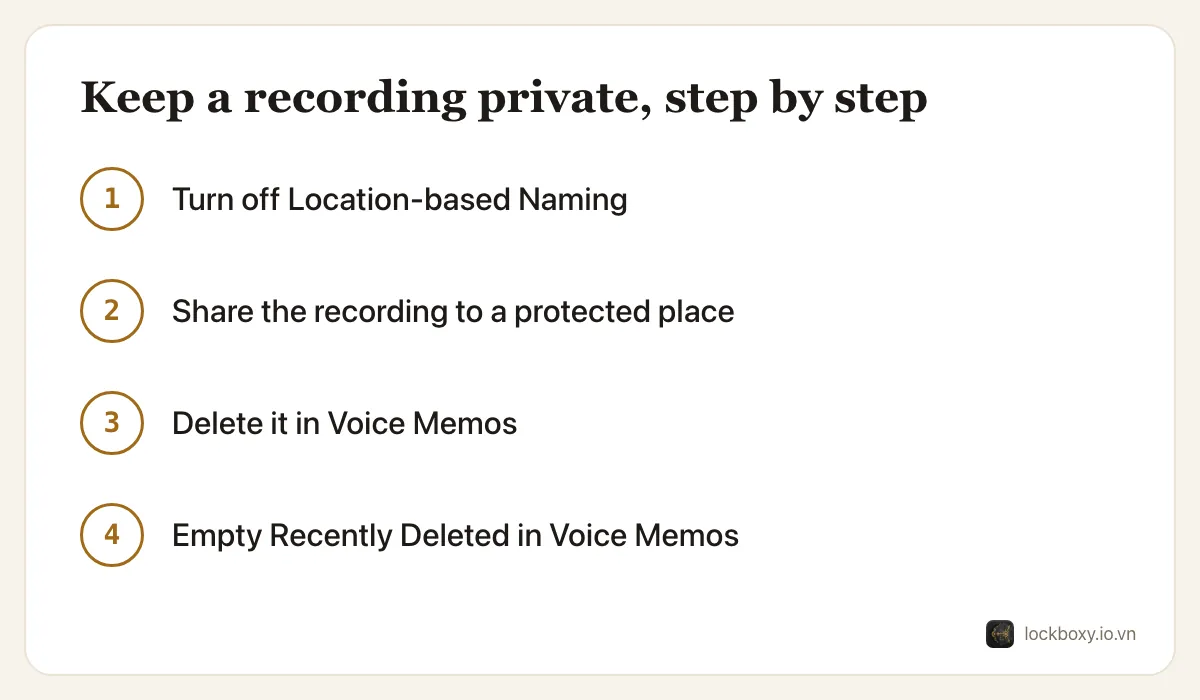
The Voice Memos app on iPhone cannot be locked: anyone holding your unlocked phone can open it and press play. To keep a recording private, turn off location-based names, move the recording somewhere that does have its own lock, then delete it from Voice Memos and empty its Recently Deleted list.
That matters more than it sounds. People record doctor's appointments, meetings with a lawyer or a landlord, a lecture with personal details in it, or a voice note to themselves. This guide covers what iOS itself offers, what it does not, and how to clean up afterwards.
Can you put a password on Voice Memos?
No. Voice Memos has no lock of its own, and the recordings are not behind Face ID the way the Hidden album in Photos is. Whoever can unlock your iPhone can listen to every recording in the list.
There are also two quieter ways a recording can say more than you intended:
- Its name. With Location-based Naming on, a new recording is named after where you made it — a clinic, an office address, a street. That name shows in the list even if nobody presses play.
- Its copies. If Voice Memos is turned on in iCloud, every recording also appears on your iPad and Mac signed in to the same Apple Account.
How do I stop recordings revealing where they were made?
- 1Open Settings, then Apps, then Voice Memos (on iOS 17 and earlier it is Settings → Voice Memos).
- 2Turn off Location-based Naming. New recordings are then simply numbered, such as “New Recording 12”.
- 3Rename existing recordings that carry a place name: tap the recording, tap its name and type something neutral.
While you are in the same settings screen, look at Clear Deleted. It decides how long deleted recordings are kept before they are really gone — more on that below.
Should Voice Memos sync to iCloud?
Syncing is useful as a backup, but it also means the recordings show up on every device signed in to your Apple Account — including a family iPad or a Mac at work that other people use.
To check it, open Settings, tap your name, then iCloud. Under Saved to iCloud, tap See All (or Show All) and look for Voice Memos. Turning it off stops this iPhone syncing recordings; it does not delete what is already on your other devices, so open Voice Memos there and remove the ones that should not be on that device. For more on shared devices, see how to stop iPhone photos syncing to iPad and Mac.
Where can I keep a recording that needs a lock?
iOS gives you a few built-in places, each with a catch:
- Files app. Open the recording, tap the More button (three dots) or the Share button and choose Save to Files. Files is tidy and works with any app, but it has no lock: like Voice Memos, it opens for anyone holding your unlocked phone.
- Locked notes. Notes can lock a note with a separate password, but notes with audio attachments cannot be locked — the Lock option simply does not appear. A locked note is good for writing down what was said, not for keeping the audio. The details are in how to lock notes on iPhone.
- Your computer or an external drive. Moving a recording off the phone is the strongest built-in option for something you rarely need to play, as long as that computer has its own password.
Whichever you choose, the original is still in Voice Memos until you remove it.
How do I delete a recording for good?
Deleting a recording does not remove it right away. Like photos, it moves to a Recently Deleted list inside Voice Memos.
- 1In Voice Memos, swipe left on the recording and tap the trash icon (or tap Edit, select several, and tap Delete).
- 2Go back to the main list and open Recently Deleted.
- 3Tap Edit, then Delete All — or select the recordings and tap Delete — and confirm.
To make this automatic, set Settings → Apps → Voice Memos → Clear Deleted to Immediately or After 1 Day instead of the default of 30 days. Remember any copies you made elsewhere too: a recording you sent in a chat app stays in that chat, and a copy saved to Files has its own Recently Deleted folder. The same habits for photos are in how to permanently delete photos on iPhone.
Where Lockboxy helps
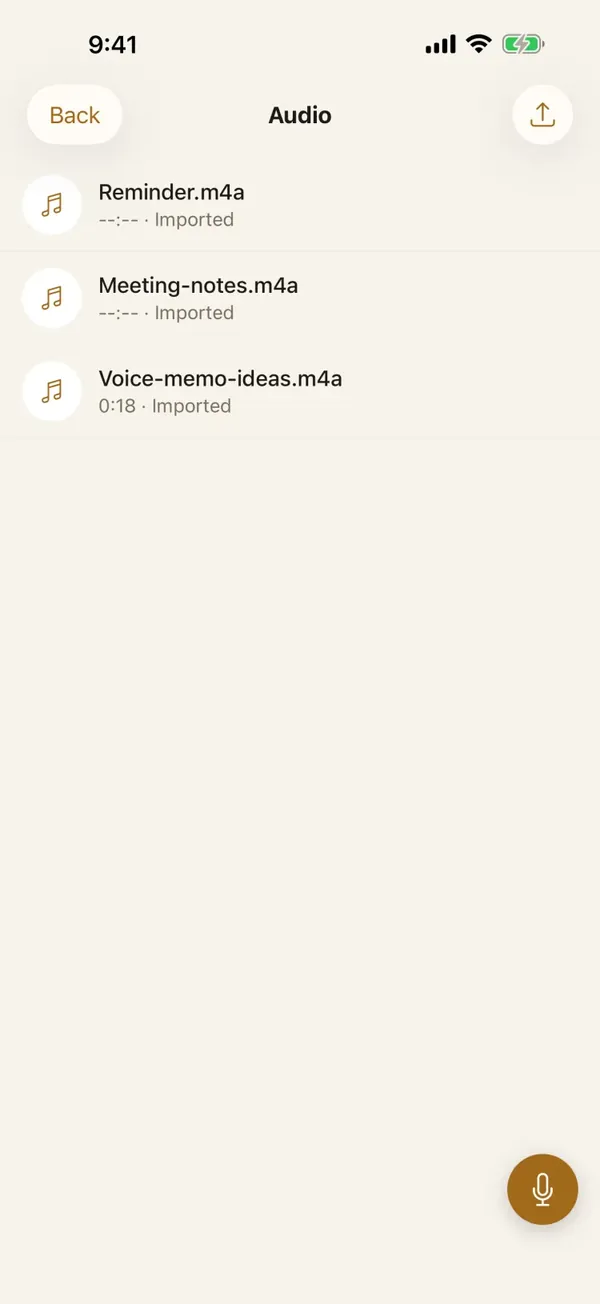
Lockboxy has an Audio area made for exactly this gap. Recordings in it are encrypted with AES-256 on your iPhone, behind a passcode that is separate from your iPhone passcode, and there is no account and no server that holds them.
- Record straight into the vault: tap Record in Audio and the voice memo is saved there, encrypted, without first passing through Voice Memos.
- Bring in recordings you already have: tap Import to pick audio files, or send a recording from Voice Memos or Files to Lockboxy through the Share Sheet. Then delete the original and empty Voice Memos' Recently Deleted, as above.
- The vault locks as soon as you leave the app and after a minute without a touch, and its content is hidden from screenshots and the app-switcher preview.
Two honest caveats. A recording that lives only in the vault is only on that iPhone unless you make an encrypted backup (Premium). And the encryption key comes from your passcode: if you forget it and did not create a Recovery Key (Premium) in advance, nobody can open the vault — including us. More in the Lockboxy FAQ.
Want a private place with its own passcode?
Lockboxy encrypts photos, videos, files and notes on your device, behind a passcode separate from your phone's. No account, no server.
Get Lockboxy on the App StoreMore guides
- How to lock notes on iPhone with a password or Face ID
- How to permanently delete photos on iPhone (and every copy you forgot)
- How to stop iPhone photos syncing to your iPad and Mac
- How to hide photos on iPhone (and what “hidden” really protects)
- How to lock apps on iPhone: Face ID lock, hidden apps and older-iOS workarounds
- How to store photos of your ID safely on your phone
- How to store passwords safely on your phone
- How to lend your iPhone without exposing your photos
- How to store a seed phrase safely (and what not to do)
- What to do before sending your iPhone for repair
- How to take photos that don't save to your iPhone camera roll
- How to scan documents on iPhone (no app needed) and store them safely
- How to store 2FA backup codes safely (and where not to)
- How to handle sensitive screenshots on iPhone (bank transfers, OTPs, IDs)
- What to do when your iPhone is lost or stolen
- How to erase your iPhone before selling it
- Lockboxy vs the iPhone Hidden album: which should you use?
- Lockboxy vs locked notes on iPhone: which is better for private notes?
- Phone privacy for livestream sellers: keep customer data off the stream
- Keeping client documents private: a phone routine for real-estate agents
Questions about how Lockboxy works? Read the FAQ