
Phone privacy for livestream sellers: keep customer data off the stream
Published October 1, 2026
If you sell by livestreaming from your phone, the main risk is not hackers — it is your own screen. A banking notification, a customer's transfer slip or a photo of someone's ID can appear on camera, or in front of whoever holds the phone, in a second. The fix is a routine: silence notifications before going live, keep product photos apart from customer documents, and move customer data out of the Photos library once an order is done.
Everything below works with the iPhone alone. The last section explains where a separate vault helps.
What customer data ends up on a seller's phone?
Over a few weeks, a busy shop collects a lot of other people's information:
- Screenshots of bank transfers that customers send as proof of payment.
- Names, phone numbers and delivery addresses, in chats and in comment screenshots.
- Photos of ID cards, sometimes sent for cash-on-delivery orders or returns.
- Supplier price lists, invoices and your own banking screens.
Almost all of it lands in the Photos library next to your product shots. That is the problem: the library is exactly what you open on stream to show a product.
How do I stop notifications showing during a livestream?
Your phone is unlocked the whole time you are live, so the default “show previews when unlocked” setting shows everything.
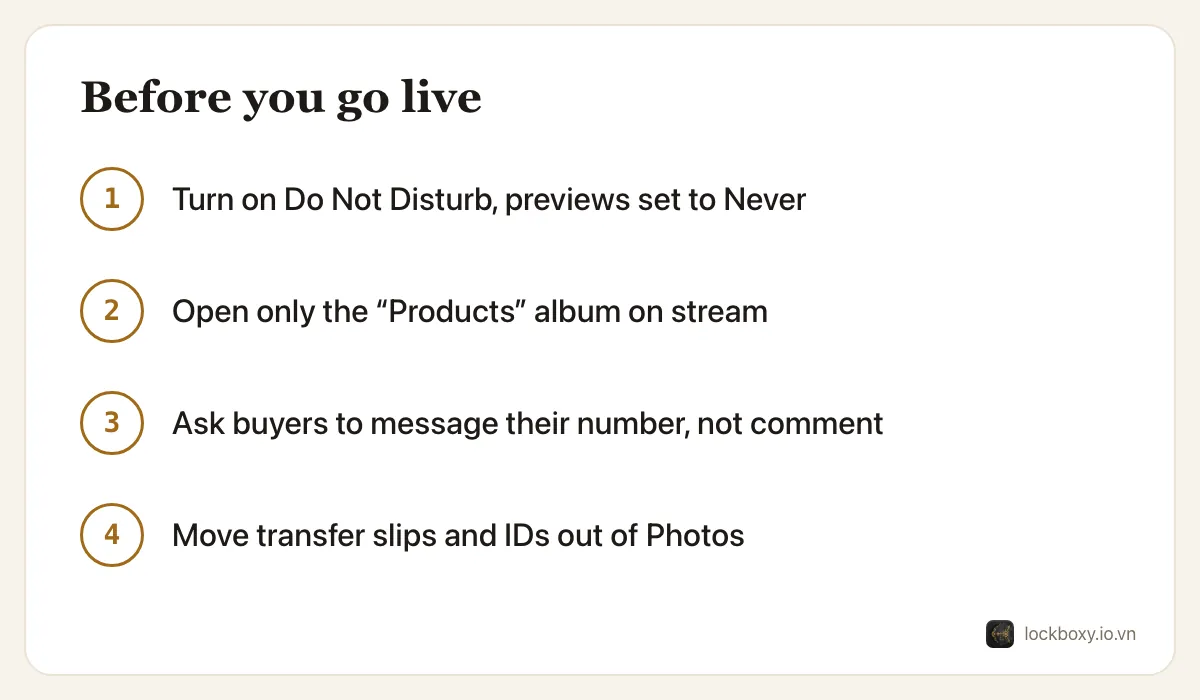
- 1Open Settings → Notifications → Show Previews and choose Never. Notifications still arrive, but without the message text.
- 2Open Settings → Focus → Do Not Disturb (or create a “Livestream” Focus) and allow only the apps you truly need, such as the streaming app.
- 3Turn the Focus on from Control Center right before you go live, and off afterwards.
If you show your screen to the camera or broadcast it, these two settings matter even more: a bank's balance notification is the kind of thing viewers screenshot.
How do I keep customer slips out of product photos?
Create one album only for things you are happy for viewers to see:
- 1In Photos, open Albums, tap + and choose New Album. Call it “Products”.
- 2Add your product photos and videos to it. During a stream, open only this album — never the full Library or Recents.
- 3Hide customer screenshots and ID photos as they arrive: select them, tap More and choose Hide. They move to the Hidden album, which is locked with Face ID — see how to hide photos on iPhone.
Hiding is a quick first step, not the end. A hidden photo is still in your library and still opens with your iPhone passcode.
What should I tell customers about posting their phone numbers?
Buyers often type their phone number in the comments to close an order. In Vietnam this has become a known scam pattern: people watch busy livestreams, collect those numbers together with what the buyer ordered, then call pretending to be the shop — about a prize, a refund or a failed delivery — and ask for a transfer or an OTP.
- Ask buyers to send their number and address by private message, and say so on stream.
- Hide or delete comments that contain a phone number, if your platform allows it.
- Tell customers clearly that your shop never asks for OTP codes or extra transfers by phone.
What if an assistant or family member uses the phone?
Many sellers hand the phone to someone else to film, read comments or pack orders. Anyone holding an unlocked phone can open Photos, chats and Files.
- Keep customer documents somewhere that asks for its own passcode or Face ID, not just the phone being unlocked.
- If possible, use a separate phone for filming, with only product photos on it.
- Lending tips that also apply here: how to lend your iPhone without exposing your photos.
How long should I keep customers' screenshots and IDs?
Only as long as the order needs them. A simple weekly routine:
- 1For orders that are delivered and past your return window, delete the transfer screenshots and ID photos.
- 2Open Photos → Recently Deleted and delete them there too; otherwise they stay for up to 30 days.
- 3Check the chat app the photos came from, which often keeps its own copy.
- 4Keep the order record (name, amount, date) in your order sheet or invoice, not as a photo of someone's ID.
Holding less data is the best protection for you and for your customers. More on cleaning up is in how to delete photos permanently.
Where Lockboxy helps
Lockboxy gives customer data its own place, behind a passcode separate from your iPhone's, so it is not one tap away while you are live or while someone else holds the phone.
- Send transfer slips and ID photos into the vault straight from Photos or a chat app through the Share Sheet, then remove the originals — iOS confirms before deleting.
- Use the in-app camera for order labels or a customer's ID at a return: the photo goes straight into the vault and never into the Photos library.
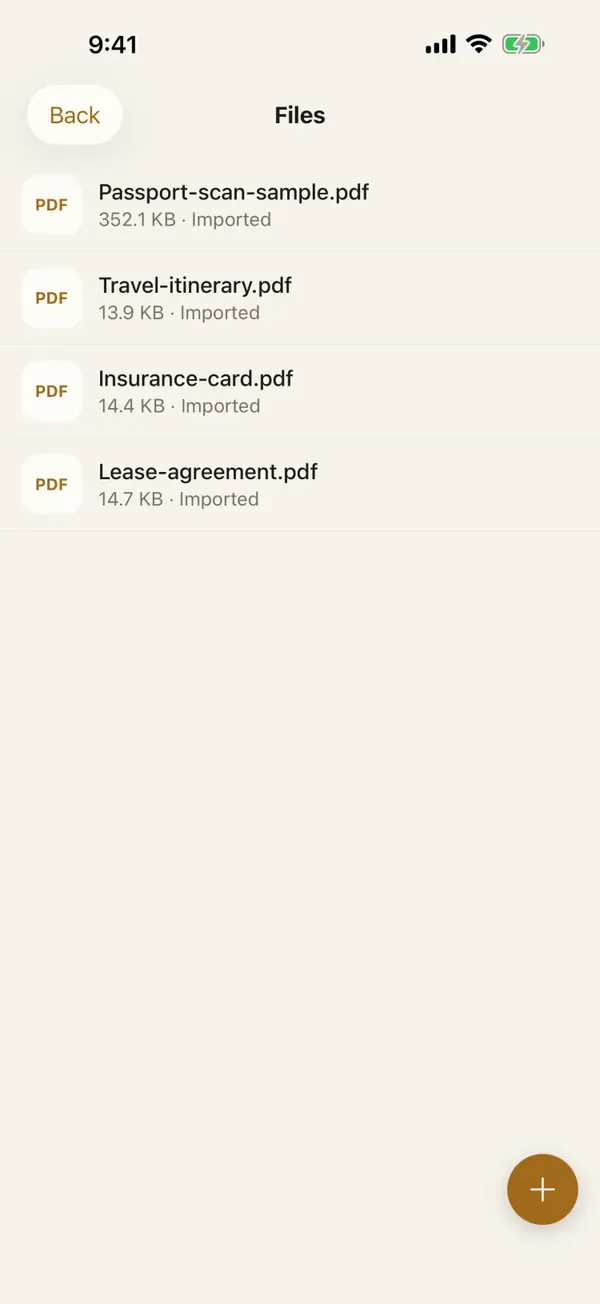
- Keep invoices and supplier price lists as files, and scan paper documents into one PDF.
- When you need to send a photo back to a customer or a courier, “Share a copy” removes location and camera details from the copy for free.
The free plan holds 30 photos/videos and 10 files, enough for a weekly routine; Premium removes the limits. Content is encrypted on the device and cannot be recovered if you forget the passcode without a Recovery Key — see the FAQ.
Want a private place with its own passcode?
Lockboxy encrypts photos, videos, files and notes on your device, behind a passcode separate from your phone's. No account, no server.
Get Lockboxy on the App StoreMore guides
- How to handle sensitive screenshots on iPhone (bank transfers, OTPs, IDs)
- How to store photos of your ID safely on your phone
- How to take photos that don't save to your iPhone camera roll
- How to hide photos on iPhone (and what “hidden” really protects)
- How to lock apps on iPhone: Face ID lock, hidden apps and older-iOS workarounds
- How to permanently delete photos on iPhone (and every copy you forgot)
- How to lock notes on iPhone with a password or Face ID
- How to store passwords safely on your phone
- How to lend your iPhone without exposing your photos
- How to store a seed phrase safely (and what not to do)
- What to do before sending your iPhone for repair
- How to scan documents on iPhone (no app needed) and store them safely
- How to store 2FA backup codes safely (and where not to)
- How to keep voice recordings private on iPhone
- How to stop iPhone photos syncing to your iPad and Mac
- What to do when your iPhone is lost or stolen
- How to erase your iPhone before selling it
- Lockboxy vs the iPhone Hidden album: which should you use?
- Lockboxy vs locked notes on iPhone: which is better for private notes?
- Keeping client documents private: a phone routine for real-estate agents
Questions about how Lockboxy works? Read the FAQ