
What to do when your iPhone is lost or stolen
Published October 1, 2026
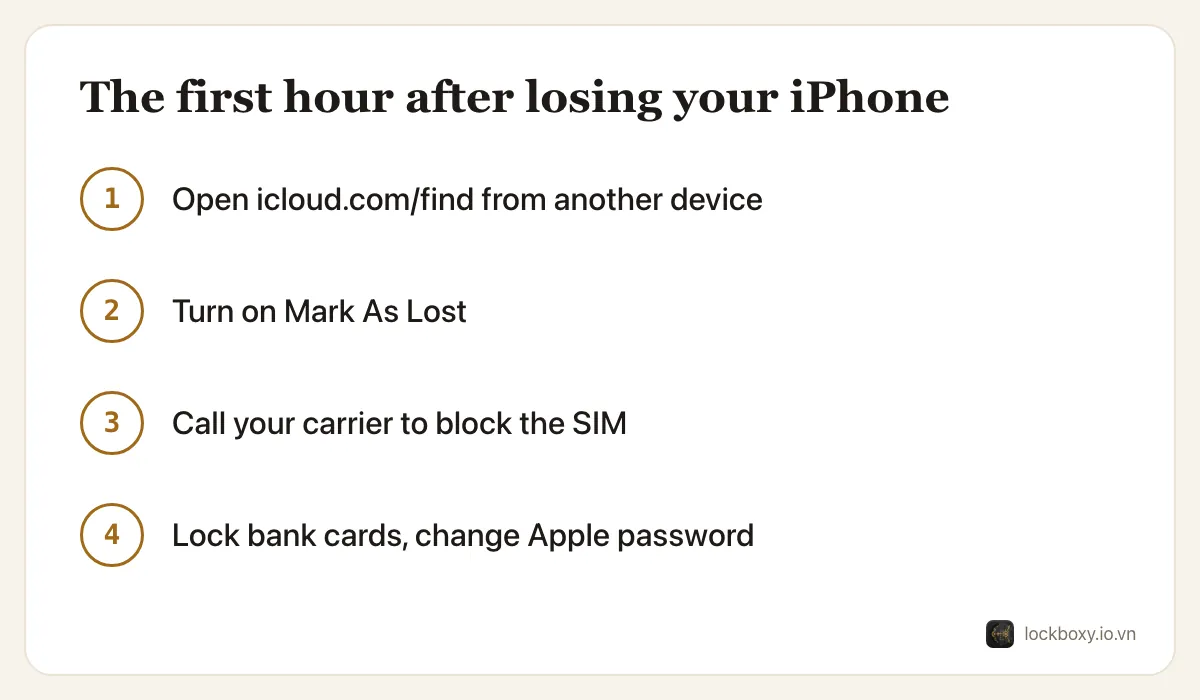
If your iPhone is lost or stolen, go to icloud.com/find from any other device, sign in and turn on Mark As Lost. Then call your carrier to block the SIM, change your Apple Account password, and lock your bank cards and e-wallets. Erase the iPhone remotely once you are sure you will not get it back.
The order matters, and so does what you set up before anything goes wrong. This guide covers the first hour, the scams that follow a theft, and a short checklist to do today.
How do I find my iPhone from another device?
- 1On a computer or a friend's phone, open icloud.com/find and sign in with your Apple Account. On someone else's iPhone, you can also use the Find My app: open the Me tab and choose Help a Friend.
- 2Select your iPhone from All Devices. If it is online, you see its location on the map; if not, you see its last known location.
- 3If it looks like you simply left it somewhere nearby, tap Play Sound.
Do not go and confront someone at the location the map shows. If you believe the phone was stolen, give the location to the police instead.
What does Mark As Lost do?
Mark As Lost (Lost Mode) locks the iPhone with its passcode, shows a message and a phone number of your choice on the Lock Screen, and suspends Apple Pay cards on the device. It keeps reporting the location while it can.
- 1In Find My, select the iPhone and choose Mark As Lost (on icloud.com/find it is Lost Mode).
- 2Enter a phone number where you can be reached and a short message. Do not put personal details in the message: anyone can read it.
- 3Confirm. The phone stays locked until it is unlocked with the passcode.
Leave the iPhone in your account. As long as it is listed under your Apple Account, Activation Lock prevents anyone else from setting it up as their own.
Should I erase my iPhone remotely?
Erasing deletes everything on the phone. Activation Lock stays on, so the thief still cannot use it as a new phone — but once it is erased you can no longer see where it is.
Erase it when you are confident it will not come back, or when the data on it worries you more than the device: work email, documents, photos of IDs. In Find My, select the device and choose Erase This Device. If the phone is offline, the erase happens the next time it connects.
Only remove the device from your account after it is erased and you have truly given up on it, for example after an insurance claim that asks for it.
Who else do I need to call?
Your phone is also your SIM, your second factor and your wallet. Work through this list:
- Carrier: ask them to block the SIM or eSIM and issue a replacement with your number. A thief with your SIM can receive one-time codes sent by text message.
- Apple Account: change the password at account.apple.com from a device you trust, and check the list of devices signed in.
- Banks and e-wallets: call their hotlines or use their apps on another device to lock cards and accounts, and watch for transfers you did not make.
- Email and social accounts that use text-message codes: change passwords, starting with your main email.
- Work: tell your IT team if the phone had work email or company apps.
What scams follow a stolen iPhone?
Because Activation Lock blocks the phone, thieves often try to trick the owner into removing it. A text or email arrives saying your iPhone “has been found” with a link to a page that looks like Apple's, asking you to sign in. Signing in there hands over your Apple Account.
- Apple does not contact you by text about a found device with a sign-in link. Always type icloud.com/find yourself.
- Never remove the device from your account because someone asks you to — not a caller claiming to be a shop, a repair center or Apple.
- Be wary of calls from people claiming to be your bank asking for a code that was just sent to you.
What should I set up today, before anything happens?
- 1Check that Find My iPhone is on: Settings → your name → Find My → Find My iPhone. Turn on Find My network and Send Last Location too.
- 2On iOS 17.3 or later, turn on Stolen Device Protection in Settings → Face ID & Passcode. Away from familiar places, sensitive changes such as your Apple Account password then need Face ID or Touch ID, not just the passcode a thief may have watched you type.
- 3Use a six-digit or alphanumeric passcode, and turn on a SIM PIN in Settings → Cellular (Mobile Data) → SIM PIN. Note your carrier's PUK code first.
- 4Keep a recent backup — iCloud Backup or a computer — so losing the phone does not mean losing what was on it.
- 5Write down your account recovery and two-factor backup codes somewhere other than the phone; see how to store 2FA backup codes safely.
Where Lockboxy helps — and where it does not
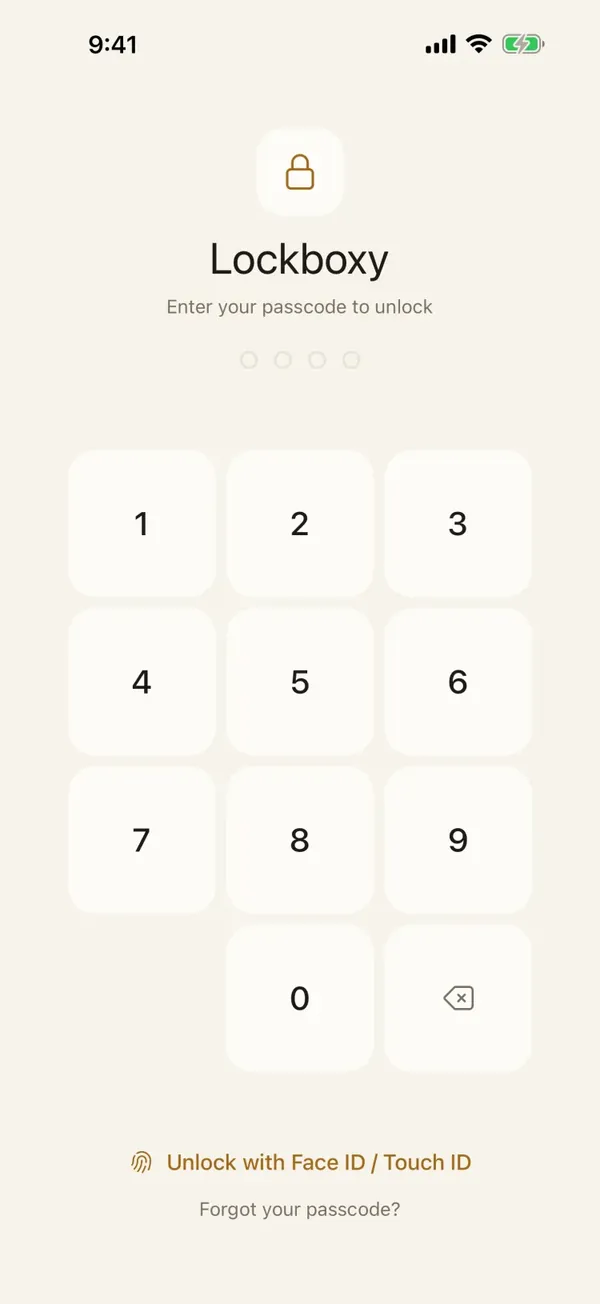
Lockboxy keeps photos, documents, notes and passwords in a vault encrypted with AES-256 on the device, behind its own passcode, separate from your iPhone passcode. If someone gets into the phone — for example because they saw you type the iPhone passcode — the vault still asks for a passcode they have not seen, and each wrong attempt makes them wait longer. With Premium, Intruder Selfie and the Security Log record failed attempts.
It is equally important to be honest about the limit. Lockboxy has no account and no server, so we cannot locate the phone, lock it remotely or restore the vault for you. If the phone is gone and you did not export an encrypted backup (Premium), the vault content is gone with it. If you keep important documents in the vault, make a backup and store it somewhere you control — and store your passwords so you can still reach your accounts from another device. More in the FAQ.
Want a private place with its own passcode?
Lockboxy encrypts photos, videos, files and notes on your device, behind a passcode separate from your phone's. No account, no server.
Get Lockboxy on the App StoreMore guides
- How to erase your iPhone before selling it
- How to store passwords safely on your phone
- How to store 2FA backup codes safely (and where not to)
- How to hide photos on iPhone (and what “hidden” really protects)
- How to lock apps on iPhone: Face ID lock, hidden apps and older-iOS workarounds
- How to store photos of your ID safely on your phone
- How to permanently delete photos on iPhone (and every copy you forgot)
- How to lock notes on iPhone with a password or Face ID
- How to lend your iPhone without exposing your photos
- How to store a seed phrase safely (and what not to do)
- What to do before sending your iPhone for repair
- How to take photos that don't save to your iPhone camera roll
- How to scan documents on iPhone (no app needed) and store them safely
- How to handle sensitive screenshots on iPhone (bank transfers, OTPs, IDs)
- How to keep voice recordings private on iPhone
- How to stop iPhone photos syncing to your iPad and Mac
- Lockboxy vs the iPhone Hidden album: which should you use?
- Lockboxy vs locked notes on iPhone: which is better for private notes?
- Phone privacy for livestream sellers: keep customer data off the stream
- Keeping client documents private: a phone routine for real-estate agents
Questions about how Lockboxy works? Read the FAQ