
How to store 2FA backup codes safely (and where not to)
Published October 1, 2026
Store your two-factor (2FA) backup codes in two places that would not be lost together — typically one printed or handwritten copy at home and one copy in an encrypted password store — and never as a screenshot in your camera roll. The codes are what get you back into an account when the phone with your authenticator is lost, broken or stolen.
That makes them as sensitive as the password itself. This guide covers what the codes are, where to get them, the options that are actually safe, and the common mistakes.
What are 2FA backup codes, exactly?
When you turn on two-step verification, most services give you a list of one-time codes, usually 8 to 10 of them. Each code works once in place of the six-digit code from your authenticator app or SMS. They exist for the day you cannot receive that code: a lost phone, a new phone that was not set up yet, a SIM that stopped working abroad.
Two other things are often confused with them:
- The setup key (secret key) is the long string, or the QR code, you scan into an authenticator app. Whoever has it can generate your six-digit codes forever, so it is even more sensitive than a single backup code.
- An account recovery key, such as the optional Recovery Key for an Apple Account, replaces the normal recovery process entirely. Lose it while locked out and the provider may not be able to help.
Where do I find my backup codes?
Look in the account's security settings, usually under a name like Security, Two-step verification or Sign-in & security, then Backup codes or Recovery codes. Most services let you view or download the list right after turning on 2FA and regenerate a fresh list later. Generating a new list cancels the old one, which is useful if you suspect a copy leaked.
- 1Open the account's security settings on a computer or in its app.
- 2Find Backup codes or Recovery codes and choose to show, download or print them.
- 3Check how many are left. If you are down to two or three, generate a new set and replace your stored copies.
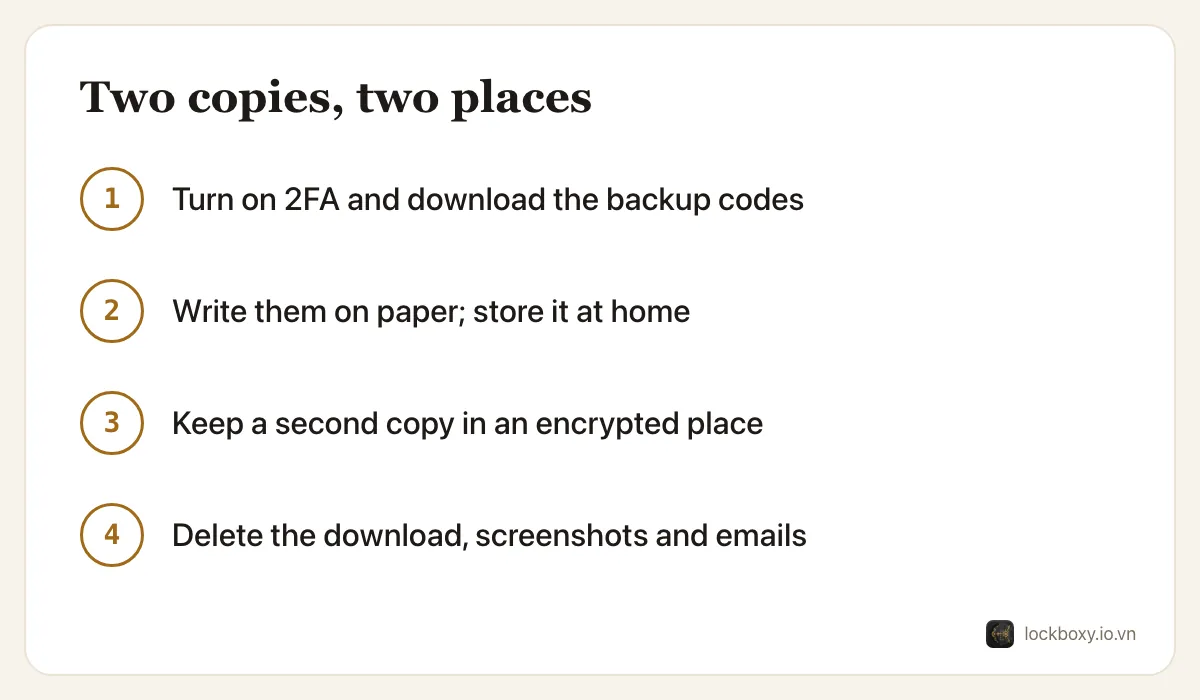
What are the safest places to keep them?
- On paper. A handwritten or printed list cannot be hacked remotely. Keep it with your other important papers, not in your wallet or phone case.
- In an encrypted password store, as a note attached to that account's entry. This is the copy you will actually reach for.
- In a locked note with a separate Notes password (not your iPhone passcode). It is built in and reasonable — see how to lock notes on iPhone for the limits.
On iOS, the Passwords app (iOS 18 and later; Settings → Passwords on older versions) can also hold an account's verification code: open the account, choose Set Up Verification Code and enter the setup key. That is convenient, but it puts the password and the second factor in the same place, protected by the same iPhone passcode. Many people prefer to keep backup codes somewhere the phone's passcode alone does not open.
Where should I never keep them?
- As a screenshot. It lands in Photos, syncs to every device on your Apple Account, and Photos search can find the text in it. If you have taken one, see how to handle sensitive screenshots on iPhone.
- In your email, especially in the inbox of the account they protect. If someone gets into that email, the codes are right there.
- In an unlocked note, a plain text file in Files, or a cloud drive folder anyone with your unlocked phone can open.
- Only on the phone that runs your authenticator. Losing that phone is exactly the situation the codes are for, so at least one copy must live elsewhere.
What should I do after using a code?
Each code works once. Cross it off your paper list and remove it from your digital copy, so you never waste a sign-in on a dead code. If you used codes because your phone is gone, follow the rest of what to do when your iPhone is lost or stolen: set up your authenticator again on the new phone, then regenerate the backup codes and replace both stored copies.
Where Lockboxy helps
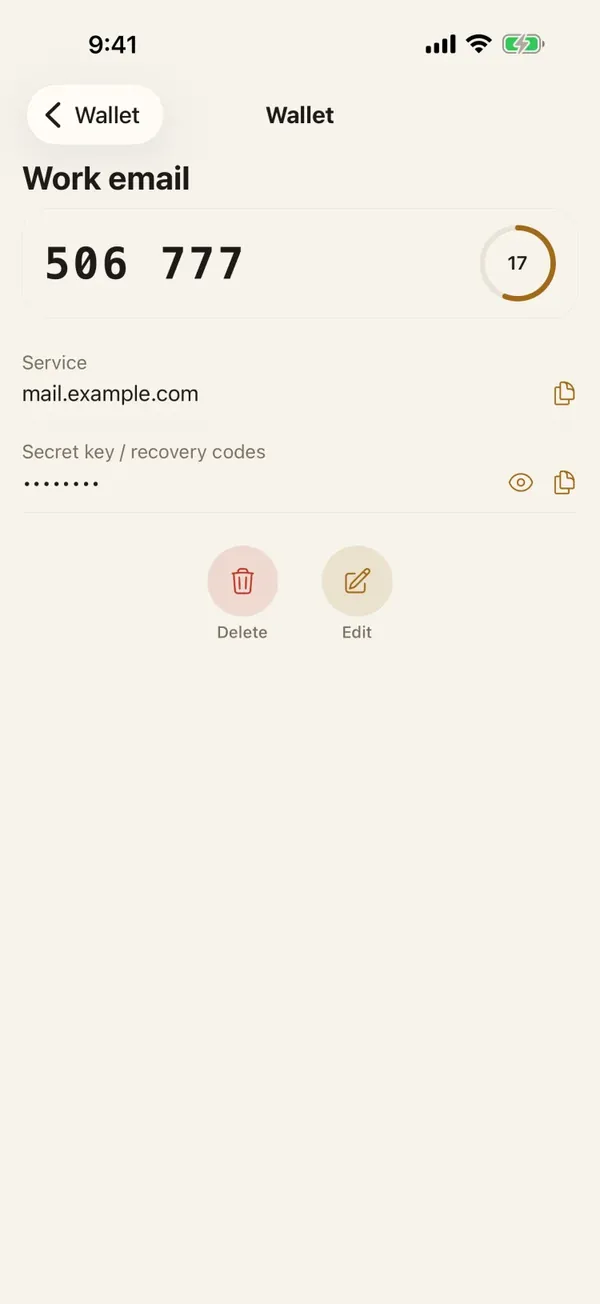
Lockboxy's Wallet has an entry type made for this, called “2FA / recovery codes”.
- Paste the setup key and the entry shows a live six-digit code with a countdown, or paste the list of backup codes and keep them with the account they belong to.
- Each field is encrypted, and the vault sits behind a passcode separate from your iPhone passcode, so knowing the phone's code is not enough to open it.
- When you copy a code or key, Lockboxy clears it from the clipboard shortly after.
- Wallet entries are unlimited on the free plan, and there is no account and no server holding them.
The honest caveat: the vault exists only on your phone unless you export an encrypted backup (Premium), and a forgotten passcode cannot be reset without a Recovery Key made in advance. So keep the paper copy too — backup codes are exactly the thing you need when the phone is gone. More in the Lockboxy FAQ.
Want a private place with its own passcode?
Lockboxy encrypts photos, videos, files and notes on your device, behind a passcode separate from your phone's. No account, no server.
Get Lockboxy on the App StoreMore guides
- How to store passwords safely on your phone
- How to store a seed phrase safely (and what not to do)
- What to do when your iPhone is lost or stolen
- How to hide photos on iPhone (and what “hidden” really protects)
- How to lock apps on iPhone: Face ID lock, hidden apps and older-iOS workarounds
- How to store photos of your ID safely on your phone
- How to permanently delete photos on iPhone (and every copy you forgot)
- How to lock notes on iPhone with a password or Face ID
- How to lend your iPhone without exposing your photos
- What to do before sending your iPhone for repair
- How to take photos that don't save to your iPhone camera roll
- How to scan documents on iPhone (no app needed) and store them safely
- How to handle sensitive screenshots on iPhone (bank transfers, OTPs, IDs)
- How to keep voice recordings private on iPhone
- How to stop iPhone photos syncing to your iPad and Mac
- How to erase your iPhone before selling it
- Lockboxy vs the iPhone Hidden album: which should you use?
- Lockboxy vs locked notes on iPhone: which is better for private notes?
- Phone privacy for livestream sellers: keep customer data off the stream
- Keeping client documents private: a phone routine for real-estate agents
Questions about how Lockboxy works? Read the FAQ