
How to scan documents on iPhone (no app needed) and store them safely
Published October 1, 2026
To scan a document on iPhone without installing anything, use the scanner built into the Notes and Files apps: open Files, tap the More button, choose Scan Documents, hold the page in view and tap Save. You get a cropped, straightened PDF instead of a crooked photo in your camera roll.
The scanning part is easy. The part people skip is deciding where the scan ends up — and for an ID card, a contract or a medical letter, that decision matters more than image quality.
Which built-in app should I scan with?
Both Notes and Files use the same scanner. The difference is where the result goes:
- Files saves a standalone PDF into a folder you choose — On My iPhone, iCloud Drive or another location. Best when you want to send the PDF, attach it to an email or upload it to a form.
- Notes puts the scan inside a note. Best when the scan belongs with some text (an order number, a deadline) or when you want to lock it behind a Notes password.
Neither puts the scan into your Photos library, which is already better than snapping a photo with the Camera app.
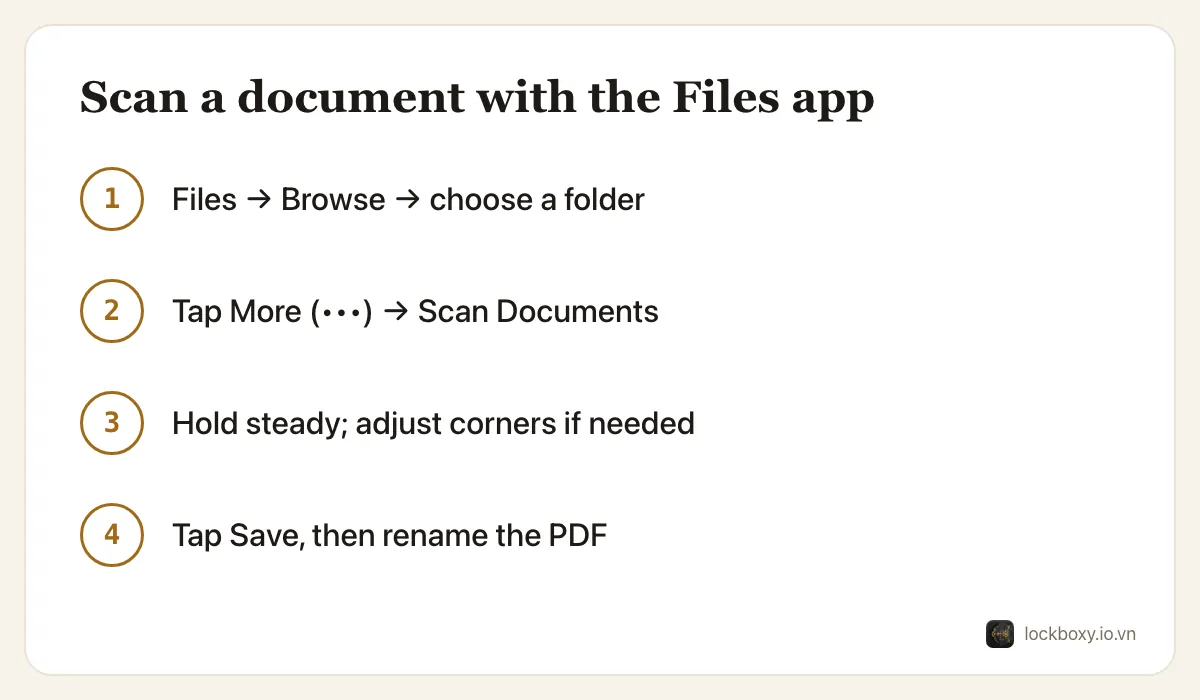
How do I scan with the Files app?
- 1Open Files and tap Browse at the bottom.
- 2Pick a location, for example On My iPhone, and open the folder you want.
- 3Tap the More button (three dots, top right) and choose Scan Documents. You can also touch and hold the Files icon on the Home Screen and choose Scan Document.
- 4Place the page on a contrasting, flat surface. In Auto mode the iPhone captures the page as soon as it detects the edges; switch to Manual and press the shutter if it keeps waiting.
- 5Scan the next pages the same way, then tap Save. The PDF is named “Scanned Document” — touch and hold it and choose Rename to give it a useful name.
How do I scan inside a note instead?
- 1Open Notes and create or open a note.
- 2Tap the camera button in the toolbar (the paperclip attachment button on newer iOS versions) and choose Scan Documents.
- 3Capture each page as above and tap Save.
To protect it, tap the More button in the note and choose Lock. Use a separate Notes password rather than your iPhone passcode — see how to lock notes on iPhone. Some notes with attachments cannot be locked, so check that the lock icon actually appears.
How do I get a clean, readable scan?
- Light it evenly. Daylight from a window beats the flash, which leaves a glare spot on glossy cards.
- Put a white sheet of paper on a dark table (or the other way round) so the edges stand out.
- Tap a thumbnail after scanning to drag the corners, rotate the page or change the filter: Color, Grayscale, Black & White or Photo. Black & White makes text crisp; keep Color for ID cards and stamps.
- Scan both sides of an ID card into the same PDF so they stay together.
- Once it is saved, you can select and copy text from the PDF with Live Text, which is handy for long reference numbers.
Where should a scanned ID or contract be stored?
A scanner gives you a tidy file; it does not protect it. Before you file the PDF away, think about who can open it:
- Files has no lock. Anyone holding your unlocked phone can open On My iPhone and iCloud Drive in a few seconds.
- iCloud Drive syncs the PDF to every device signed in to your Apple Account, including a shared family iPad or an old Mac.
- Email and chat apps keep a copy of every attachment you send, often indefinitely.
For documents you rarely need, a locked note with a separate password is a reasonable built-in choice. Delete scans you no longer need, and when you must send an ID, send it only through an official channel. How to store photos of your ID safely walks through a full clean-up.
Where Lockboxy helps
Lockboxy has the same kind of scanner, with the result going into an encrypted vault instead of an open folder.
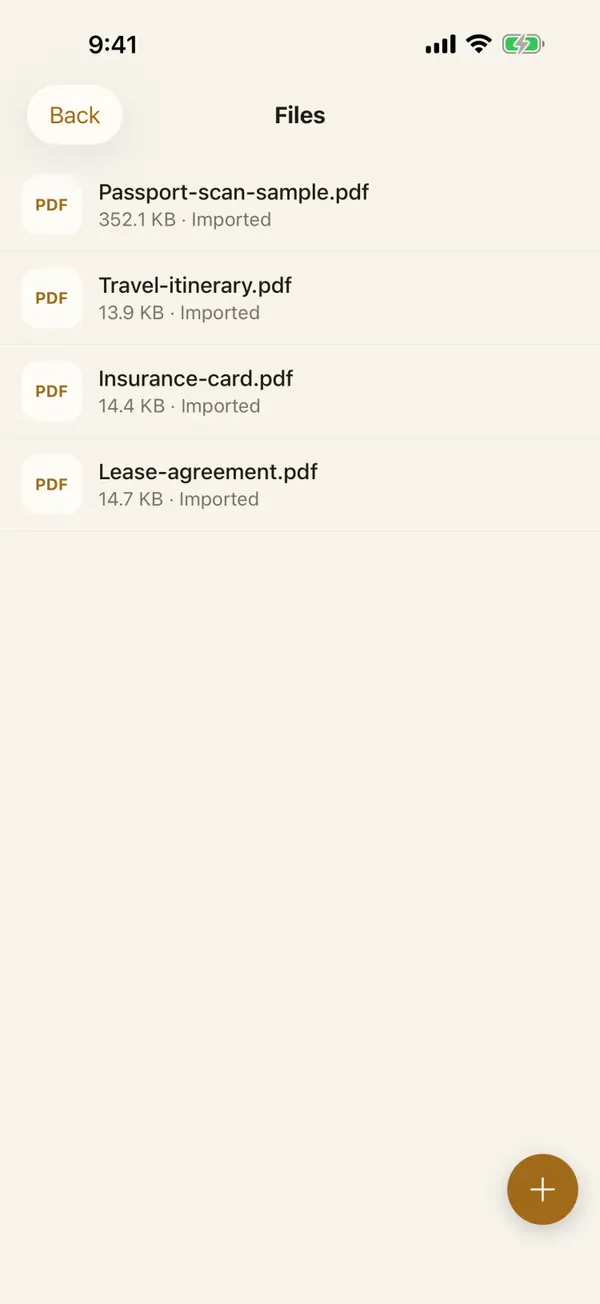
- Open Files in the vault and choose Scan a document. Lockboxy finds the page edges and straightens each page, then saves the scan into Files as one PDF or as separate images.
- A title is suggested from the text on the page. The text is read on the device only; your pages never leave it.
- The scan is encrypted with AES-256 like any other file, behind a passcode separate from your iPhone passcode. There is no account and no server holding your documents.
- Documents you already have can be sent into the vault from Files or Mail through the Share Sheet.
On the free plan, Files holds up to 10 files, and when you save a scan as images each page counts as one file — a multi-page PDF counts once. If you forget the vault passcode and did not create a Recovery Key (Premium), nobody can open it, so keep a backup of documents that are hard to replace.
Want a private place with its own passcode?
Lockboxy encrypts photos, videos, files and notes on your device, behind a passcode separate from your phone's. No account, no server.
Get Lockboxy on the App StoreMore guides
- How to store photos of your ID safely on your phone
- How to take photos that don't save to your iPhone camera roll
- Keeping client documents private: a phone routine for real-estate agents
- How to hide photos on iPhone (and what “hidden” really protects)
- How to lock apps on iPhone: Face ID lock, hidden apps and older-iOS workarounds
- How to permanently delete photos on iPhone (and every copy you forgot)
- How to lock notes on iPhone with a password or Face ID
- How to store passwords safely on your phone
- How to lend your iPhone without exposing your photos
- How to store a seed phrase safely (and what not to do)
- What to do before sending your iPhone for repair
- How to store 2FA backup codes safely (and where not to)
- How to handle sensitive screenshots on iPhone (bank transfers, OTPs, IDs)
- How to keep voice recordings private on iPhone
- How to stop iPhone photos syncing to your iPad and Mac
- What to do when your iPhone is lost or stolen
- How to erase your iPhone before selling it
- Lockboxy vs the iPhone Hidden album: which should you use?
- Lockboxy vs locked notes on iPhone: which is better for private notes?
- Phone privacy for livestream sellers: keep customer data off the stream
Questions about how Lockboxy works? Read the FAQ