
How to take photos that don't save to your iPhone camera roll
Published October 1, 2026
The built-in Camera app always saves to your Photos library — there is no switch to turn that off. To take a picture that never lands in your camera roll, take it from inside another app that keeps its own copy: the Notes app does this by default, and the Files app's document scanner saves straight to a PDF.
This guide shows both methods step by step, the settings that quietly undo them, and what to check so a photo you meant to keep private does not end up synced, in Recently Deleted, or in your Memories.
Can I stop the iPhone Camera app from saving photos?
No. Every photo and video taken with the Camera app — including from the Lock Screen, Control Center or the Action Button — goes into the Photos library. Taking a photo while the phone is locked only limits what can be viewed without unlocking; the picture is still saved to your library like any other.
Hiding the photo or deleting it afterwards is possible (see how to hide photos on iPhone), but for a short while it sits in the library, can sync through iCloud Photos to your other devices and can appear in search. If you know in advance that a picture is private, the cleaner option is not to create the library copy at all.
How do I take a photo inside Notes instead?
Photos taken from inside a note are stored in that note, not in Photos, as long as one setting stays off.
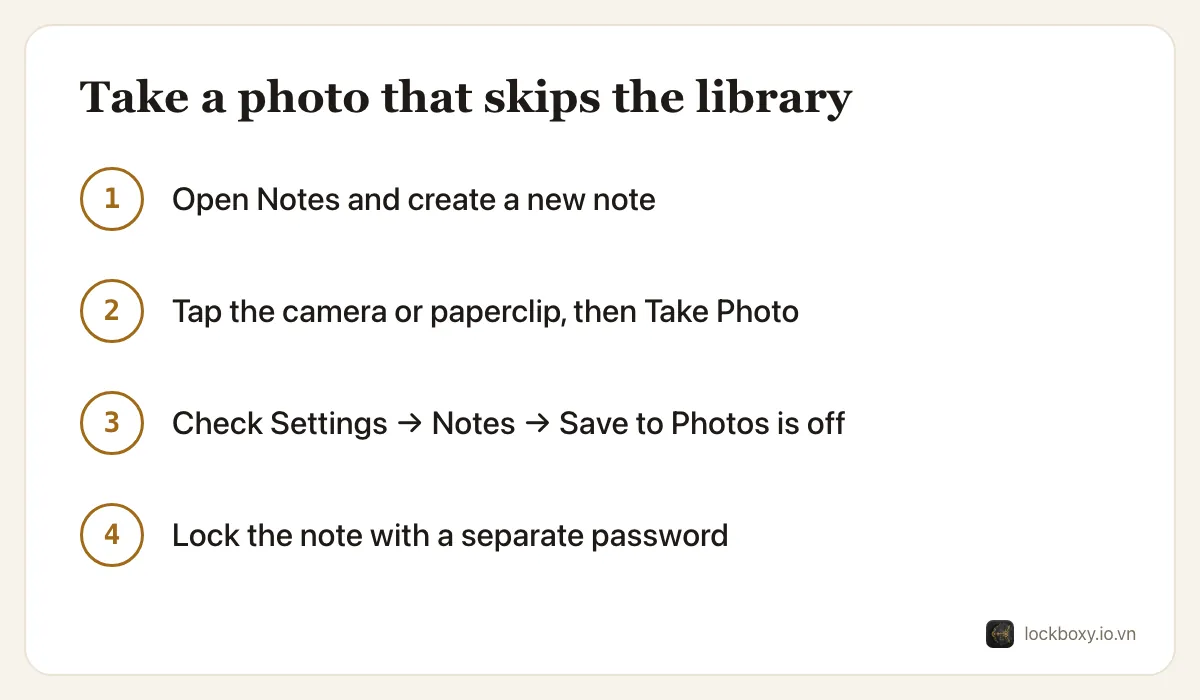
- 1Open the Notes app and create a new note. Type a neutral first line such as “Docs”, because the first line becomes the note's title and stays visible in the list.
- 2Tap the camera button in the toolbar (on newer iOS versions it is the paperclip attachment button) and choose Take Photo or Video.
- 3Take the picture and tap Use Photo. It appears inside the note.
- 4Open Settings → Apps → Notes (Settings → Notes on iOS 17 and earlier) and make sure Save to Photos is turned off. When it is on, every photo taken in Notes is also copied into your library, which defeats the purpose.
How do I lock the note so the photo is protected?
A photo in an unlocked note is out of the camera roll, but anyone who can open Notes can see it. Lock it:
- 1In the note, tap the More button (three dots) and choose Lock.
- 2The first time, choose between your iPhone passcode and a separate Notes password. The separate password is the stronger choice, because it is not the code people around you may have seen you type.
Two limits to keep in mind: a note with certain attachments cannot be locked, and a note stored in a Gmail or other non-iCloud account cannot be locked at all — keep it in iCloud or On My iPhone. The full details are in how to lock notes on iPhone.
What about documents, receipts and ID cards?
For anything flat — a contract, a receipt, the front of an ID card — the Files app's scanner skips Photos entirely and gives you a PDF.
- 1Open Files, go to Browse and pick a location such as On My iPhone.
- 2Tap the More button (three dots, top right) and choose Scan Documents.
- 3Hold the page in view; the iPhone captures it automatically. Tap Save when you have every page.
The PDF is saved in the folder you chose. Note that Files has no lock of its own: anyone holding your unlocked phone can open it. How to scan documents on iPhone covers the options in more detail.
What can still leave a copy behind?
Keeping a picture out of the library is only half of it. Check these before you rely on it:
- iCloud Notes sync: notes in your iCloud account appear on your iPad and Mac too. A locked note stays locked there, but an unlocked one is readable on every device signed in to your Apple Account.
- Screenshots: taking a screenshot of the note puts the image straight back into Photos.
- Sharing: if you send the photo through a chat app, the copy in that chat — and possibly in the other person's library — is outside your control.
- Chat apps that save media automatically: many messaging apps have a setting such as “Save to camera roll” or “Save incoming media”. Turn it off in each app you use, or photos people send you land in your library without you taking anything.
- Mistakes: if a private photo did reach the library, delete it and then empty Recently Deleted, otherwise it stays there for up to 30 days. See how to permanently delete photos on iPhone.
Where Lockboxy helps
Notes works, but it is a workaround: photos are mixed in with your shopping lists, and the note's title is always on show. Lockboxy has a camera built in for exactly this.
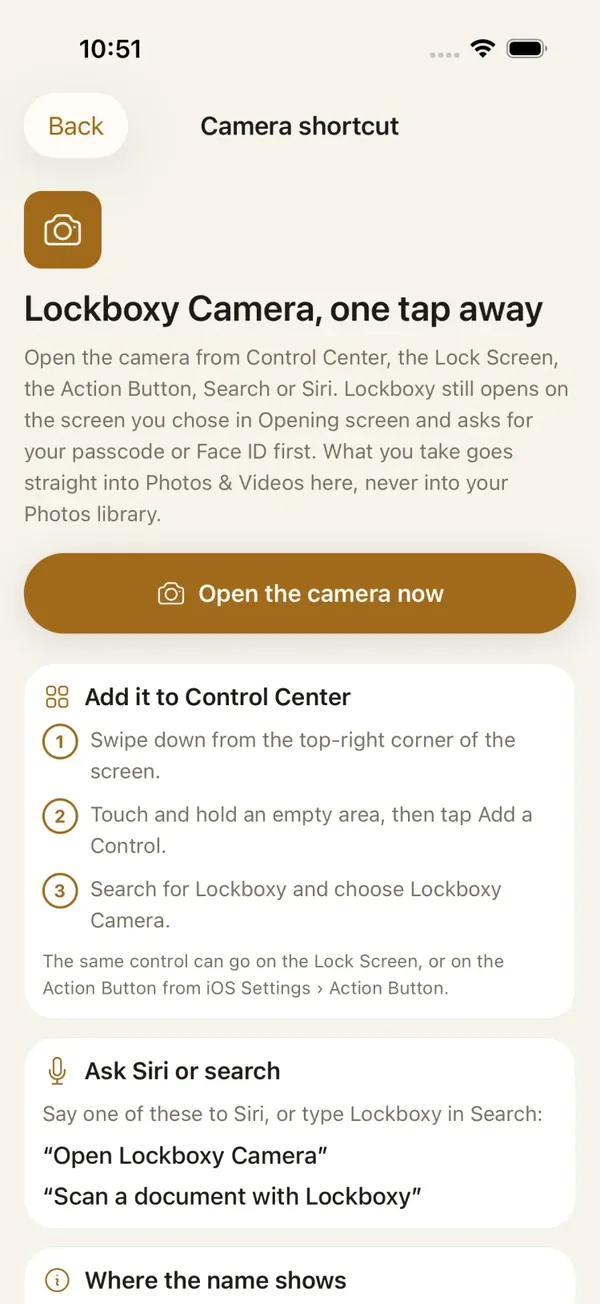
- Photos and videos taken with Lockboxy's in-app camera go straight into the vault and are never written to the Photos library, so there is nothing to clean up afterwards.
- Lockboxy Camera can sit in Control Center, on the Lock Screen or on the Action Button (iOS 18 and later), and you can ask Siri or Spotlight for it (iOS 16 and later). It always opens Lockboxy and asks for your passcode or Face ID before the camera starts.
- Everything is encrypted with AES-256 on the device, behind a passcode separate from your iPhone passcode, with no account and no server holding your photos.
The free plan holds up to 30 photos or videos. One honest caveat: the key comes from your passcode, so a forgotten passcode cannot be reset unless you created a Recovery Key (Premium) beforehand. More answers are in the Lockboxy FAQ.
Want a private place with its own passcode?
Lockboxy encrypts photos, videos, files and notes on your device, behind a passcode separate from your phone's. No account, no server.
Get Lockboxy on the App StoreMore guides
- How to hide photos on iPhone (and what “hidden” really protects)
- How to permanently delete photos on iPhone (and every copy you forgot)
- How to scan documents on iPhone (no app needed) and store them safely
- How to lock apps on iPhone: Face ID lock, hidden apps and older-iOS workarounds
- How to store photos of your ID safely on your phone
- How to lock notes on iPhone with a password or Face ID
- How to store passwords safely on your phone
- How to lend your iPhone without exposing your photos
- How to store a seed phrase safely (and what not to do)
- What to do before sending your iPhone for repair
- How to store 2FA backup codes safely (and where not to)
- How to handle sensitive screenshots on iPhone (bank transfers, OTPs, IDs)
- How to keep voice recordings private on iPhone
- How to stop iPhone photos syncing to your iPad and Mac
- What to do when your iPhone is lost or stolen
- How to erase your iPhone before selling it
- Lockboxy vs the iPhone Hidden album: which should you use?
- Lockboxy vs locked notes on iPhone: which is better for private notes?
- Phone privacy for livestream sellers: keep customer data off the stream
- Keeping client documents private: a phone routine for real-estate agents
Questions about how Lockboxy works? Read the FAQ