
Lockboxy vs locked notes on iPhone: which is better for private notes?
Published October 1, 2026
For most private notes, the Notes app is enough: lock the note with a custom password instead of your iPhone passcode, keep a neutral first line, and it is free and synced through iCloud. Lockboxy is the better fit when you want the whole note hidden (title included), want notes kept next to passwords, 2FA codes, scans and photos, or do not want them in iCloud at all.
Below is a side-by-side comparison, with the cases where Notes clearly wins.
How does locking work in the Notes app?
You open a note, tap the More button and choose Lock. Notes then asks for your iPhone passcode or a separate Notes password, with Face ID or Touch ID as a shortcut. The body of the note is encrypted and hidden until you unlock it, and locked notes sync through iCloud to your other Apple devices.
There are limits: the first line stays visible in the list, and you cannot lock shared notes, notes with tags, or notes with attachments such as video, audio or PDFs. Notes stored in a non-iCloud account cannot be locked either. The full setup is in how to lock notes on iPhone.
How are notes kept in Lockboxy?
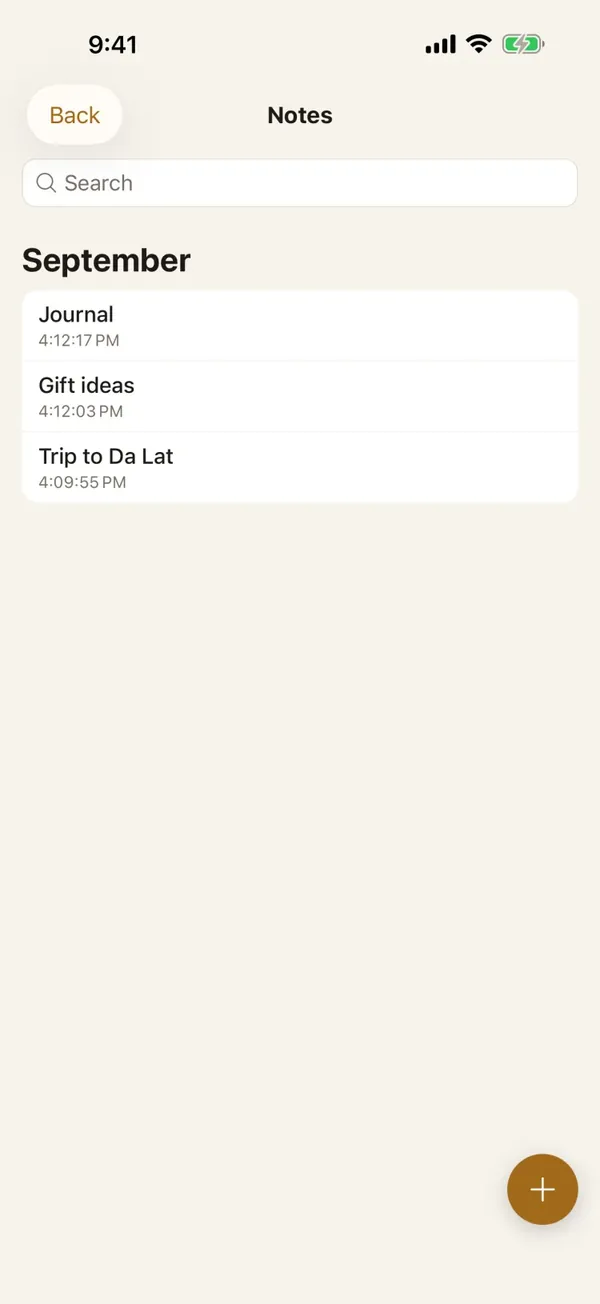
Private Notes in Lockboxy sit inside the vault, behind a passcode separate from your iPhone passcode. Every note — title and body — is encrypted with AES-256-GCM on the device, saved automatically, and listed by month and year. Notes are unlimited on the free plan.
The same vault has a Wallet for passwords, cards and 2FA codes, and Files for scanned documents, so a note about an account can sit next to the account's details instead of being the only place they are written down.
How do they compare side by side?
| Locked note in Notes | Lockboxy | |
|---|---|---|
| Cost | Free, built into iOS | Notes, Wallet and contacts unlimited on the free plan |
| Password | iPhone passcode or a custom Notes password | Its own passcode, separate from the iPhone's |
| What stays visible | The note's title (first line) | Nothing until the vault is unlocked |
| Attachments | Video, audio, PDFs and some other files block locking | Photos, files and audio sit in their own encrypted areas of the vault |
| Sharing and tags | Not possible on a locked note | Not available; the vault is single-user |
| Sync | iCloud, to iPad and Mac | No automatic sync; encrypted backup and Wi-Fi transfer are Premium |
| Passwords and 2FA | Typed into the note as text; no live codes | Wallet entries with copy that clears the clipboard, live 2FA codes |
| Forgotten password | Custom password: old notes stay locked; reset applies to new ones | Content unrecoverable unless you made a Recovery Key (Premium) |
Where does the Notes app clearly win?
- It costs nothing and needs nothing installed.
- Your notes are on your iPad and Mac automatically, and an iCloud backup covers them.
- You can collaborate: shared notes, mentions, tags and folders all work — just not on locked notes.
- Search, scanning straight into a note, sketches and checklists are all built in.
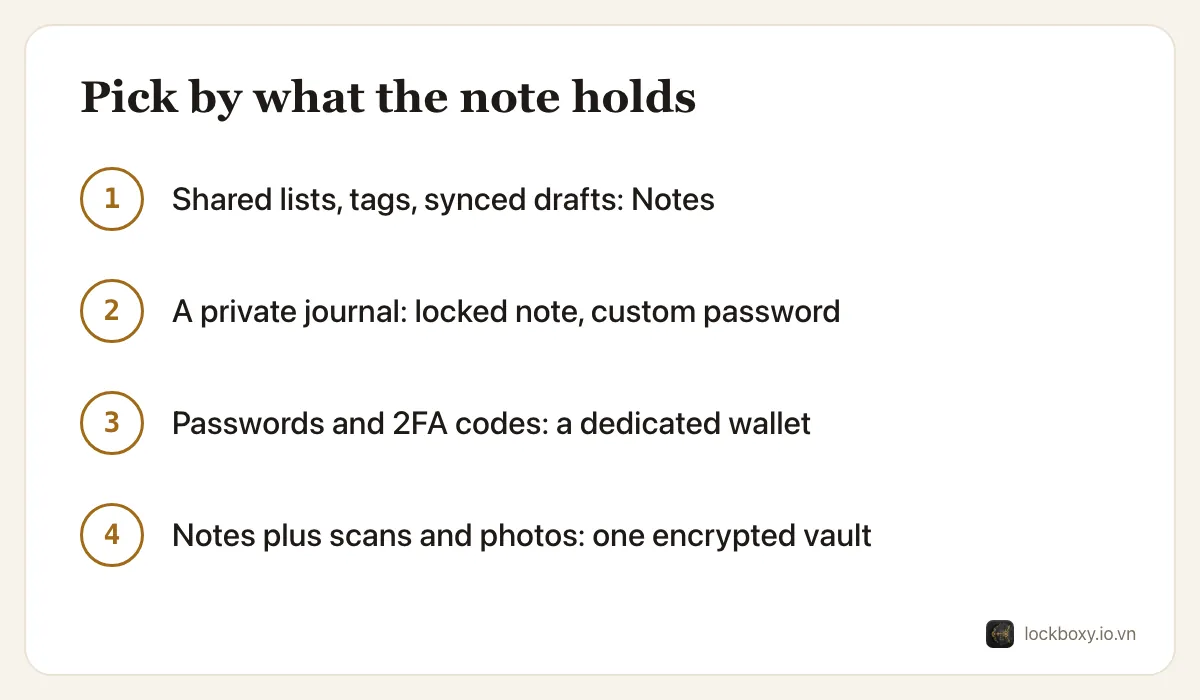
If you only lock a few notes and nobody else knows your custom Notes password, stay with Notes.
When is a separate vault worth it?
- The title of the note is itself sensitive, and renaming it every time is not realistic.
- Someone knows your iPhone passcode and you chose to lock notes with it — switching to a custom Notes password fixes that too, so try that first.
- You want notes, passwords, 2FA codes and document scans behind one passcode, not spread across three apps.
- You prefer the content never to be in iCloud.
Should passwords and 2FA codes live in a note at all?
It is common, and a locked note with a custom password is far better than an unlocked one. But a note is just text: copying a password leaves it on the clipboard, and a list of recovery codes has no structure. iOS already includes a password manager for website logins, which is the right place for most passwords.
For recovery codes, PINs and things that do not fit a password manager, keep them in an encrypted place you control and keep a second copy offline — see how to store 2FA backup codes safely.
How can I move notes from Notes into Lockboxy?
There is no automatic import from Notes, so move only what needs it:
- 1Unlock the note in Notes and copy its text.
- 2In Lockboxy, open Notes, create a note and paste. For a password or 2FA code, create a Wallet entry instead.
- 3Back in Notes, delete the original, then open Recently Deleted in Notes and delete it there too.
Where Lockboxy helps
Lockboxy keeps the whole note private, not only its body, and puts it next to the Wallet, Files, photos and audio in one encrypted vault with its own passcode. Copying a Wallet field clears it from the clipboard shortly after, and a saved password can be checked against known breaches by sending only a short anonymized fingerprint.
The trade-off is the same as with a custom Notes password, only stricter: forget the passcode and the content cannot be opened unless you created a Recovery Key (Premium) beforehand. More in the Lockboxy FAQ; for photos, see Lockboxy vs the Hidden album.
Want a private place with its own passcode?
Lockboxy encrypts photos, videos, files and notes on your device, behind a passcode separate from your phone's. No account, no server.
Get Lockboxy on the App StoreMore guides
- How to lock notes on iPhone with a password or Face ID
- Lockboxy vs the iPhone Hidden album: which should you use?
- How to store 2FA backup codes safely (and where not to)
- How to hide photos on iPhone (and what “hidden” really protects)
- How to lock apps on iPhone: Face ID lock, hidden apps and older-iOS workarounds
- How to store photos of your ID safely on your phone
- How to permanently delete photos on iPhone (and every copy you forgot)
- How to store passwords safely on your phone
- How to lend your iPhone without exposing your photos
- How to store a seed phrase safely (and what not to do)
- What to do before sending your iPhone for repair
- How to take photos that don't save to your iPhone camera roll
- How to scan documents on iPhone (no app needed) and store them safely
- How to handle sensitive screenshots on iPhone (bank transfers, OTPs, IDs)
- How to keep voice recordings private on iPhone
- How to stop iPhone photos syncing to your iPad and Mac
- What to do when your iPhone is lost or stolen
- How to erase your iPhone before selling it
- Phone privacy for livestream sellers: keep customer data off the stream
- Keeping client documents private: a phone routine for real-estate agents
Questions about how Lockboxy works? Read the FAQ