
How to stop iPhone photos syncing to your iPad and Mac
Published October 1, 2026
Your iPhone photos appear on your iPad or Mac because iCloud Photos is on and both devices are signed in to the same Apple Account. To stop it on one device, open Settings on that device, tap your name, then iCloud → Photos, and turn off Sync this iPad (or uncheck iCloud Photos in the Photos app's settings on a Mac). Your iPhone and iCloud keep everything.
This comes up most often with a family iPad that the kids use for games, or a Mac at work that colleagues sometimes sit at. Below is how to switch syncing off where it is not wanted, what happens to the photos already there, and the other paths photos travel that people forget about.
Why do my iPhone photos show up on other devices?
iCloud Photos keeps one library in iCloud and mirrors it to every device that is signed in to your Apple Account with Photos syncing turned on. Take a picture on the iPhone, and within minutes it is on the iPad and the Mac too. Delete it on one, and it is deleted everywhere.
That is exactly what you want on your own devices. It is less ideal when a device signed in with your account is used by other people — for example an iPad set up with your Apple Account years ago and since handed to the family.
The Hidden album syncs as well. A photo hidden on your iPhone is hidden on the iPad too, but it is still there, and that device's own passcode is what protects it.
How do I turn off iCloud Photos on just one device?
Do this on the device that should stop showing your photos — not on your iPhone.
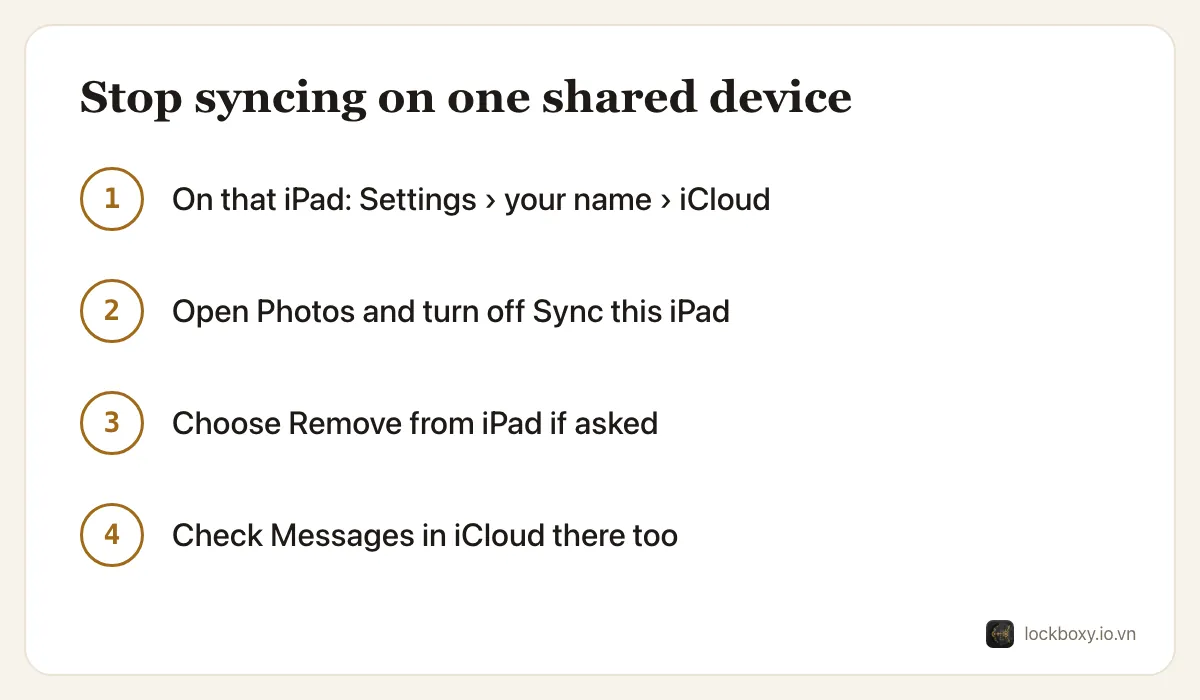
- 1On an iPad: open Settings, tap your name, then iCloud, then Photos.
- 2Turn off Sync this iPad (called iCloud Photos on iPadOS 16 and earlier).
- 3If the iPad was set to Optimize iPad Storage, iPadOS asks what to do with the photos it holds. Choose Remove from iPad if the goal is to clear them off that device; your iPhone and iCloud still have every photo.
- 4On a Mac: open the Photos app, choose Photos → Settings (Preferences on older macOS), click iCloud and uncheck iCloud Photos. The Mac then keeps only what was fully downloaded; delete those in Photos on the Mac if they should not stay there.
Turning it off on one device never deletes anything from iCloud or your other devices.
What if the family iPad is signed in with my Apple Account?
Turning off Photos is a quick fix, but the account still connects that iPad to much more: Messages, Notes, iCloud Drive, Safari history and passwords if those are on.
The cleaner fix is to sign the iPad out of your account (Settings → your name → Sign Out) and give it its own Apple Account. With Family Sharing, a child can have their own account while you still share purchases and approve downloads. Before signing out, make sure anything that exists only on the iPad is backed up.
If signing out is not practical, at least check each switch under Settings → your name → iCloud → See All on that iPad, and turn off Messages in iCloud as well: photos sent and received in iMessage travel with your conversations, separate from iCloud Photos.
What about Shared Library and shared albums?
These are separate from your own iCloud Photos and are easy to mix up:
- iCloud Shared Photo Library (iOS 16.1 and later) is a second library shared with up to five other people, and everyone in it can see, add and delete. If the camera's Shared Library button is on, new photos can go there automatically. Check Settings → Apps → Photos → Shared Library, and turn off sharing from the camera if you want photos to land in your personal library first.
- To move a photo out of the Shared Library, open it, tap the More button and choose Move to Personal Library.
- Shared Albums are albums you invited people to. Anything you add is visible to all subscribers, regardless of your iCloud Photos settings.
Can I turn iCloud Photos off everywhere?
Yes, but be careful: then your iPhone holds the only copy of new photos, and an iPhone set to Optimize iPhone Storage may only hold small previews of older ones.
- 1On your iPhone, go to Settings → your name → iCloud → Photos and make sure Download and Keep Originals is selected. Wait until every original has downloaded — check you have enough free space first.
- 2Turn off Sync this iPhone. Repeat on each device.
- 3Only if you also want the cloud copy gone: Settings → your name → iCloud → Manage Account Storage (or Storage) → Photos → Turn Off and Remove from iCloud. Apple keeps the photos for 30 days before deleting them.
Without iCloud Photos, plan another backup, such as a computer or an external drive. For photos you remove for good, see how to permanently delete photos on iPhone.
Where Lockboxy helps
Sometimes you want most photos to sync — holidays, family pictures — but a handful should never be on the family iPad: a scan of an ID card, a medical document, a screenshot of a bank transfer. Turning off iCloud Photos for everything just to keep a few private is a big trade.
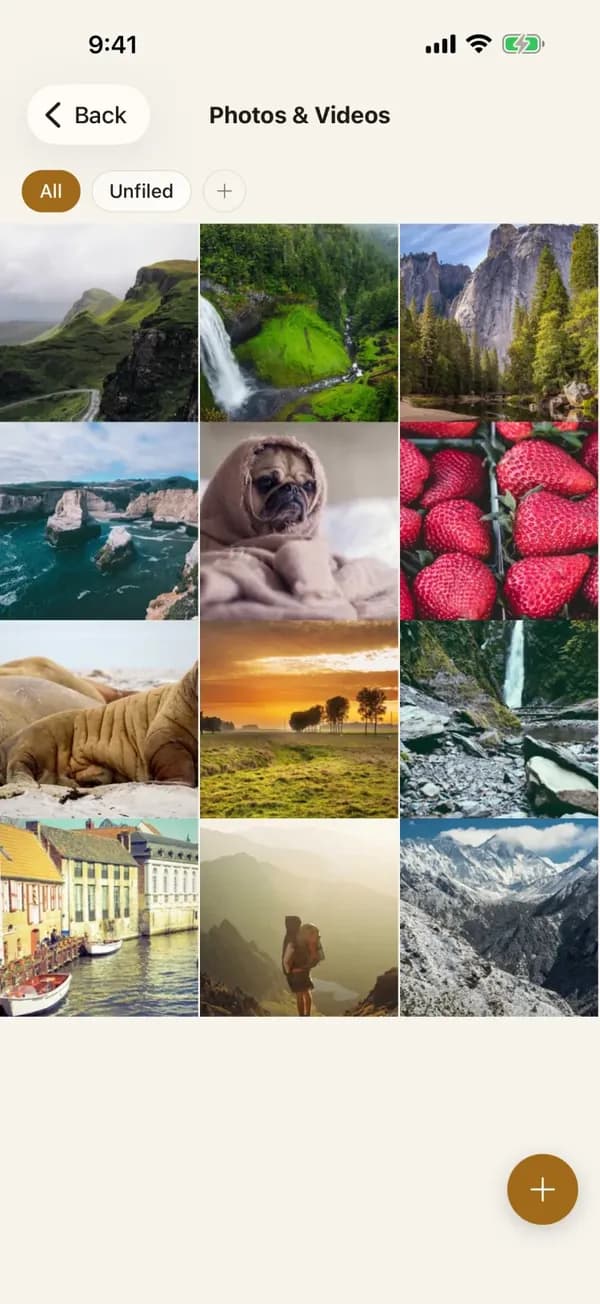
Lockboxy is a separate vault that lives only on your iPhone. Photos you move into it are encrypted with AES-256 on the device, behind a passcode separate from your iPhone's, and are not part of iCloud Photos — so they do not appear on any other device. There is no account and no server holding them.
- Import from your library, then optionally remove the originals; iOS asks you to confirm before anything is deleted. Empty Recently Deleted afterwards so the copy is gone from iCloud too.
- The in-app camera saves straight into the vault, so those photos never enter the synced library at all.
- To move vault content to another device of yours, Premium offers an encrypted backup you store where you choose and a transfer over your own Wi-Fi.
The flip side of staying off iCloud: if you lose the phone without a backup, the vault content is gone with it. More on hiding photos on iPhone and in the FAQ.
Want a private place with its own passcode?
Lockboxy encrypts photos, videos, files and notes on your device, behind a passcode separate from your phone's. No account, no server.
Get Lockboxy on the App StoreMore guides
- How to hide photos on iPhone (and what “hidden” really protects)
- How to permanently delete photos on iPhone (and every copy you forgot)
- How to lend your iPhone without exposing your photos
- How to lock apps on iPhone: Face ID lock, hidden apps and older-iOS workarounds
- How to store photos of your ID safely on your phone
- How to lock notes on iPhone with a password or Face ID
- How to store passwords safely on your phone
- How to store a seed phrase safely (and what not to do)
- What to do before sending your iPhone for repair
- How to take photos that don't save to your iPhone camera roll
- How to scan documents on iPhone (no app needed) and store them safely
- How to store 2FA backup codes safely (and where not to)
- How to handle sensitive screenshots on iPhone (bank transfers, OTPs, IDs)
- How to keep voice recordings private on iPhone
- What to do when your iPhone is lost or stolen
- How to erase your iPhone before selling it
- Lockboxy vs the iPhone Hidden album: which should you use?
- Lockboxy vs locked notes on iPhone: which is better for private notes?
- Phone privacy for livestream sellers: keep customer data off the stream
- Keeping client documents private: a phone routine for real-estate agents
Questions about how Lockboxy works? Read the FAQ