
How to tell if someone went through your iPhone
Published October 3, 2026
To tell if someone went through your iPhone, check the traces iOS keeps anyway: Screen Time activity, the Battery chart, Recently Deleted, Safari history and Face ID settings. iPhone keeps no log of who unlocked it, so these clues show what was opened and when, not who did it. For private photos and notes, Lockboxy adds a separate vault passcode and, with Premium, records every wrong attempt.
Maybe the phone was not where you left it, an app was open that you did not open, or someone at home or at work knows your passcode. Below is what to check first, what each clue can and cannot prove, and how to make the next look harder.
Does iPhone record who unlocked it?
No. At the time of writing, iOS has no unlock history and no built-in photo of whoever typed a wrong passcode. After several wrong passcodes in a row the iPhone makes you wait before trying again, but it does not tell you about it later. Two things follow:
- If the person knew your passcode, unlocking left no special mark. You can only look at what they did once inside.
- Every clue below tells you when the phone was used and which apps were open. Matching that against where you were at the time is what turns a clue into an answer.
How do I check what was opened on my iPhone, and when?
Go through these in order. Each takes a minute, and none of them changes anything on the phone:
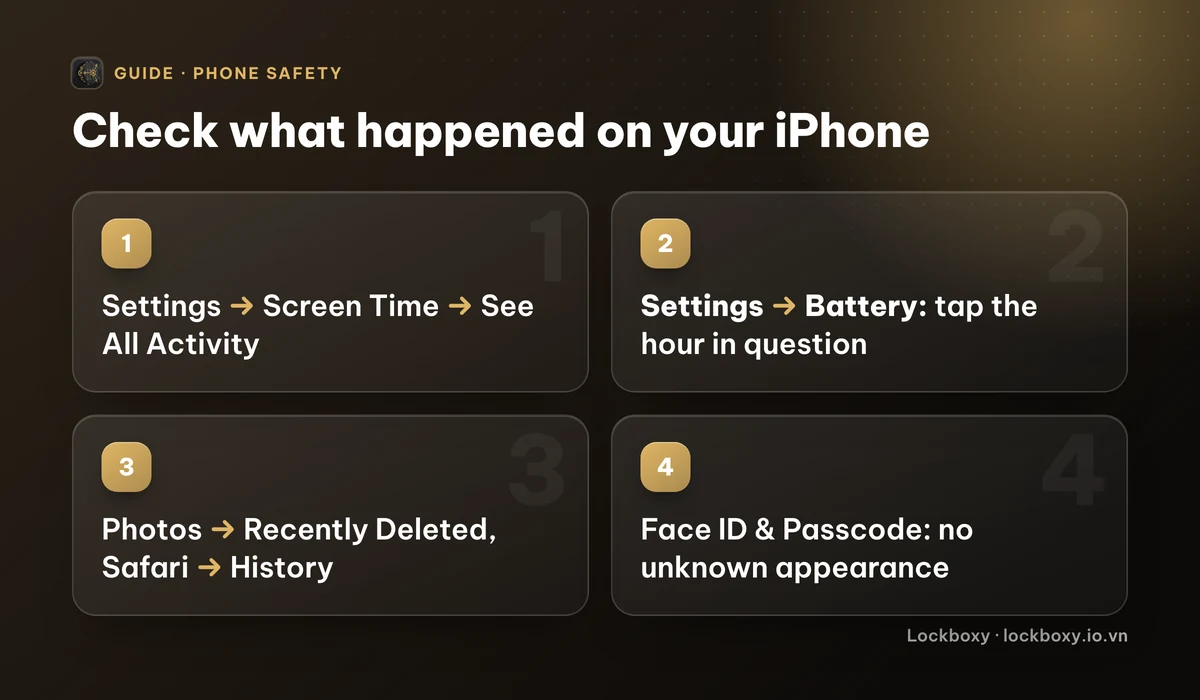
- 1Open Settings → Screen Time → See All App & Website Activity, then choose Day. The chart shows phone use hour by hour, and further down you see Pickups and which app was opened first after each pickup. Usage at an hour when the phone was not in your hands is the strongest clue. This only works if Screen Time was already turned on.
- 2Open Settings → Battery. The chart for the last 24 hours shows when the screen was on; tap a bar to see which apps were active in that hour.
- 3Swipe up from the bottom of the screen and pause to open the App Switcher. Apps you did not open recently may have been used by someone else.
- 4Open Photos and look in Recently Deleted (under Utilities). Photos deleted in the last 30 days stay there. While you are in Photos, scroll to the most recent items and check for screenshots you did not take.
- 5Open Safari, tap the bookmarks button and choose History. Then glance at Phone → Recents and Messages for calls, messages or sent photos you do not recognise.
Could someone have added their face or fingerprint?
This is easy to miss and worth checking, because it lets someone unlock the phone again later without knowing your passcode.
- 1Open Settings → Face ID & Passcode and enter your passcode.
- 2Look for the Set Up an Alternate Appearance option. If it is missing and you never added a second appearance yourself, someone else may have added their face. Tap Reset Face ID and set it up again with only your own face.
- 3On an iPhone with Touch ID, open Settings → Touch ID & Passcode and delete any fingerprint you do not recognise.
It is also worth opening Settings → Privacy & Security → Safety Check. It lists the people and apps you share things with, such as your location, and the devices signed in to your Apple Account, and lets you stop any of them in one place.
How do I make it harder for this to happen again?
The clues above tell you what happened. These steps make it less likely next time:
- 1Change your passcode in Settings → Face ID & Passcode → Change Passcode. If the person may have watched you type, choose Passcode Options for a longer custom code.
- 2Shorten Auto-Lock in Settings → Display & Brightness → Auto-Lock, so a phone left on the table locks within a minute.
- 3On iOS 18, long-press an app such as Photos, Messages or your banking app and choose Require Face ID. The guide to locking apps on iPhone explains this and the options for older iOS.
- 4When you lend the phone, use Guided Access so it stays inside one app. How to lend your iPhone without exposing your photos walks through it.
How does Lockboxy show who tried to open your private files?
Lockboxy is a vault for photos, videos, files, notes, passwords and contacts, encrypted with AES-256 on the device. It is locked with its own passcode, separate from your iPhone passcode, so someone who has unlocked your phone still meets a second lock in front of the vault. Each wrong attempt in a row makes the next one wait longer, from 1 second up to 2 minutes.
With Premium, it can also record who tried:
- 1Open Lockboxy and unlock it with your passcode, or with Face ID if you turned it on.
- 2Open Settings in the vault and turn on Intruder Selfie. iOS then asks for Camera permission; Lockboxy asks for it only for this feature.
- 3From then on, after 4 wrong passcodes in a row, the front camera takes a photo and a short video, saved with the time.
- 4To review, open Settings → Security Log. It lists every failed unlock attempt and each time the vault was locked, with the photo and video when one was taken. You can delete a single entry or clear the whole log.
Everything captured is encrypted inside the vault and never uploaded. Keep the limits in mind: Lockboxy only sees attempts on its own passcode. It cannot tell you who unlocked your iPhone or opened another app, which is why the iPhone checks above still matter.
What should you do if you find signs that someone looked?
Stay practical. Change your iPhone passcode first, then reset Face ID if anything there looked wrong. If the person may have seen your Apple Account password, change it too in Settings → your name → Sign-In & Security.
Next, move what really should stay private out of the Photos library and into a place with its own lock. The guide to hiding photos on iPhone compares the Hidden album with a separate vault. If the phone itself might be gone rather than just borrowed, follow what to do if you lose your iPhone instead.
Free and Premium details, including which protections are in each plan, are on the Premium page.
Frequently asked questions
Can I see who unlocked my iPhone?
No. iOS does not keep an unlock history or take a photo of someone who enters a wrong passcode. Screen Time, the Battery chart and recently used apps show when the phone was used and what was opened, but not by whom.
Does Screen Time show activity if I never turned it on?
No. Screen Time only records usage after it is turned on. If it was off, check the Battery chart, Recently Deleted, Safari history and Phone → Recents instead.
Does Lockboxy take a photo when someone unlocks my iPhone?
No. Intruder Selfie only reacts to wrong passcodes typed into Lockboxy itself. After 4 wrong attempts in a row, the front camera takes a photo and a short video, saved encrypted in the vault.
Is Intruder Selfie part of the free plan?
No. Intruder Selfie and the Security Log are Premium features. The free plan already includes the separate vault passcode and the growing wait after wrong attempts.
Are intruder photos uploaded anywhere?
No. They are encrypted and stored inside the vault on your iPhone. Lockboxy has no account and no server that receives them.
Want a private place with its own passcode?
Lockboxy encrypts photos, videos, files and notes on your device, behind a passcode separate from your phone's. No account, no server.
Get Lockboxy on the App StoreMore guides
- How to lend your iPhone without exposing your photos
- How to lock apps on iPhone: Face ID lock, hidden apps and older-iOS workarounds
- What to do when your iPhone is lost or stolen
- How to hide photos on iPhone (and what “hidden” really protects)
- How to store photos of your ID safely on your phone
- How to permanently delete photos on iPhone (and every copy you forgot)
- How to lock notes on iPhone with a password or Face ID
- How to store passwords safely on your phone
- How to store a seed phrase safely (and what not to do)
- What to do before sending your iPhone for repair
- How to take photos that don't save to your iPhone camera roll
- How to scan documents on iPhone (no app needed) and store them safely
- How to store 2FA backup codes safely (and where not to)
- How to handle sensitive screenshots on iPhone (bank transfers, OTPs, IDs)
- How to keep voice recordings private on iPhone
- How to stop iPhone photos syncing to your iPad and Mac
- How to erase your iPhone before selling it
- Lockboxy vs the iPhone Hidden album: which should you use?
- Lockboxy vs locked notes on iPhone: which is better for private notes?
- Phone privacy for livestream sellers: keep customer data off the stream
- Keeping client documents private: a phone routine for real-estate agents
- How to hide contacts on iPhone: what really works
Questions about how Lockboxy works? Read the FAQ