
How to move private photos to a new iPhone
Published October 5, 2026
To move private photos to a new iPhone, use iCloud Photos or Quick Start for your normal library and Hidden album, and move anything kept in a separate vault with that vault's own transfer. In Lockboxy, Premium's Move to a New Phone sends the whole vault over Wi-Fi, and Back Up Vault saves an encrypted file you can restore on the new phone.
The risk is the photos you keep outside your normal backup. A private vault with no account and no server holds its content only on one phone, so if you set up the new iPhone and sell the old one without a plan, that content goes with the old phone. Below is what each route moves, step by step.
Do my private photos move automatically to a new iPhone?
It depends on where they live:
- Photos in your Photos library, including the Hidden album, come across if iCloud Photos is turned on and you sign in to the same Apple Account on the new iPhone. If iCloud Photos is off, they are part of an iCloud or computer backup instead, and arrive when you restore it.
- A vault app with its own passcode, no account and no server does not live in your Apple Account. Do not assume it moves with Quick Start or a backup: open the app and look for its own transfer or export option, and check on the new phone that your items are there.
So the built-in tools cover your Photos library, and your private vault needs its own step.
How do I move my photo library with the iPhone's own tools?
- 1Before anything else, back up the old iPhone: Settings → your name → iCloud → iCloud Backup → Back Up Now, on Wi-Fi.
- 2Check that iCloud Photos is on if you use it: Settings → Photos → Sync this iPhone (iCloud Photos). Let it finish uploading.
- 3Switch on the new iPhone and place the two phones next to each other to use Quick Start, or choose to restore from an iCloud backup during setup.
- 4Sign in with the same Apple Account. Photos, including the Hidden album, appear as iCloud downloads them, which can take hours on a large library.
- 5On the new phone, open Photos → Albums → Utilities and check that Hidden is there. On iOS 16 and later it opens only with Face ID, Touch ID or your passcode.
The guide to hiding photos on iPhone explains what the Hidden album does and does not protect. If you would rather not sync some photos to every device, read how to stop iPhone photos syncing to your iPad and Mac first.
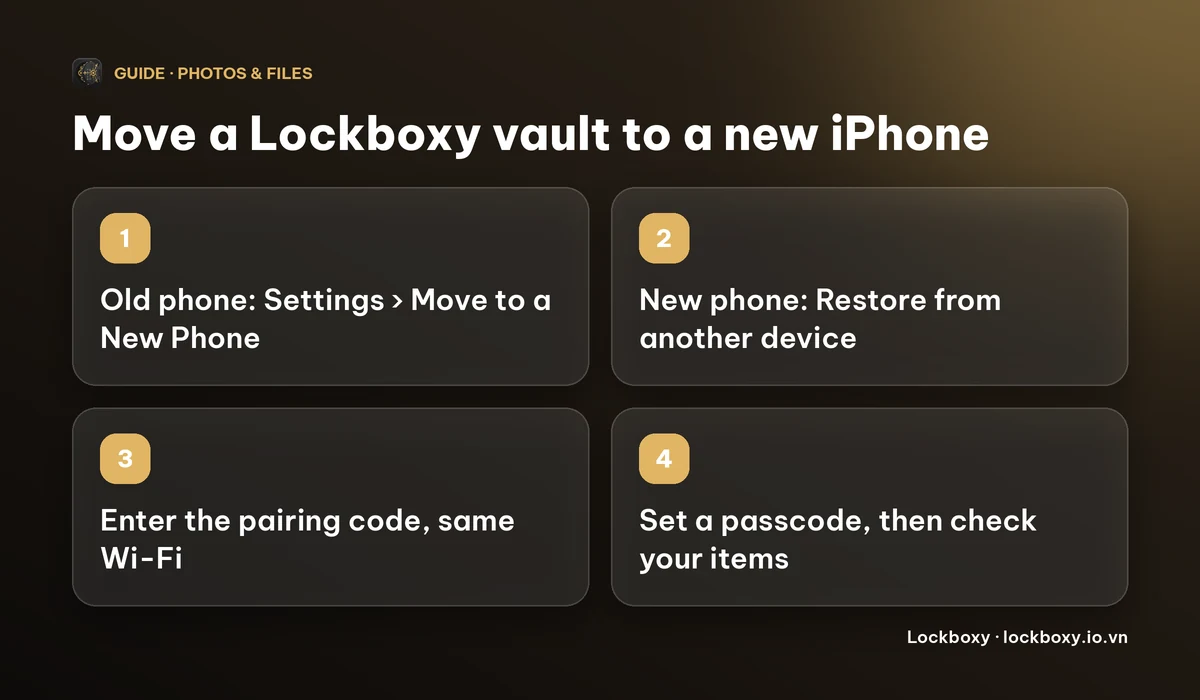
How do I move my Lockboxy vault to a new iPhone over Wi-Fi?
This route sends every area of the vault straight from the old phone to the new one. Nothing goes over the internet, and it is a Premium feature on the sending phone. Both phones must be on the same Wi-Fi network.
- 1Install Lockboxy on the new iPhone and open it. After the short tour, choose Restore from another device.
- 2On the old iPhone, open Lockboxy, go to Settings and tap Move to a New Phone, then Start sending. A pairing code appears.
- 3Type the pairing code on the new iPhone. It shows how many items are available to restore; tap Continue.
- 4Set a passcode for the new vault, and confirm it. You can keep your old passcode or choose a new one.
- 5Wait until all items are imported, then tap Continue to your vault.
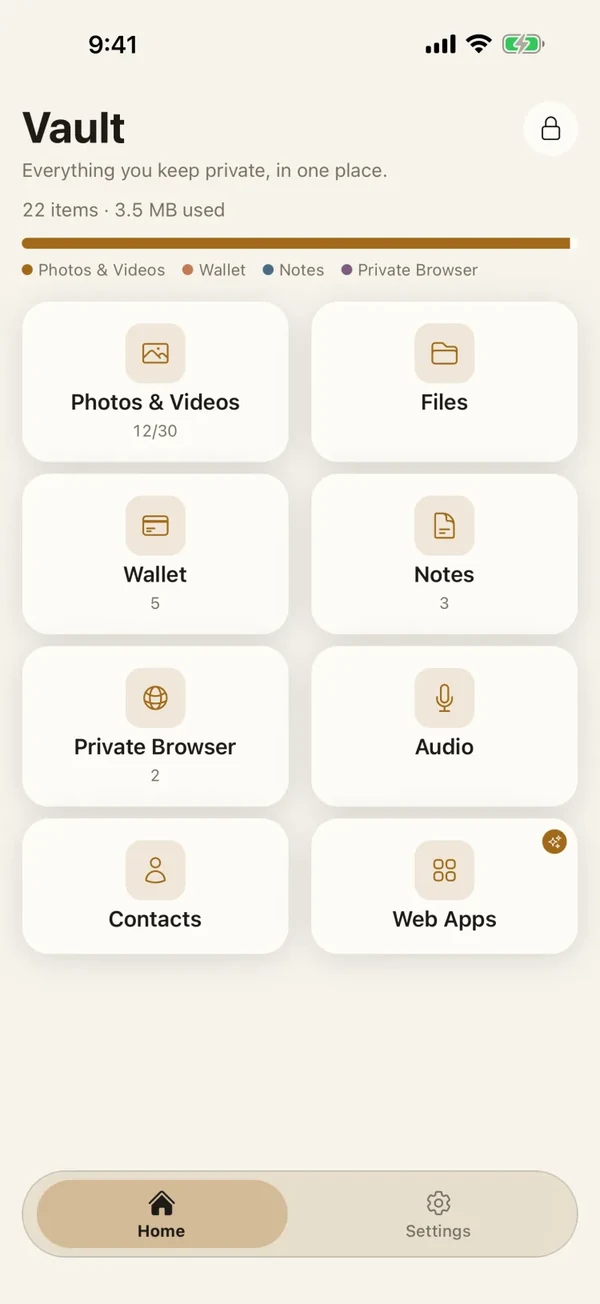
- 6Open Photos & Videos, Files, Notes and the other areas, and check that your items are there. Keep the old iPhone as it is until you have done this.
How do I move it with an encrypted backup file instead?
Use this when the two phones cannot be together, or when you also want a copy to keep. Back Up Vault is a Premium feature. The file is encrypted and only your passcode, or your Recovery Key, can open it.
- 1On the old iPhone, open Lockboxy → Settings → Back Up Vault and tap Back up now.
- 2Choose where to save the file: your own iCloud Drive, Google Drive or the Files app. Lockboxy has no server, so the file only goes where you send it.
- 3On the new iPhone, open Lockboxy and choose I have a backup file. Pick the file from where you saved it.
- 4Confirm the restore, then enter the passcode the backup was made under, or your Recovery Key if you no longer remember it.
What if I only want a few photos in my normal Photos library?
You do not have to move the whole vault. In the vault, select the photos you want back and tap Unhide: each is decrypted, saved as an unencrypted copy in your Photos library and removed from the vault, and the Photos copy then follows the normal iPhone route above. Do this only for photos you are happy to have in Photos again, since once they are there they follow the rules of that library, including iCloud sync if it is on.
To find out what else to check before you wipe the old phone, see how to erase your iPhone before selling it.
What are the mistakes that lose private photos?
- Erasing or selling the old iPhone before you have checked the items on the new one.
- Never making a backup or transfer, and so having no copy of a vault that lives only on that phone.
- Forgetting the passcode. Nobody can open a vault without it, including us. Setting up a Recovery Key (Premium) gives you a second way in; write it down away from the phone.
If the old phone is already lost, the options change; read what to do when your iPhone is lost or stolen. Prices and which plan includes which feature are on the Premium page.
How does Lockboxy make moving easier?
Lockboxy is a private vault for photos, videos, files, notes, passwords and contacts, encrypted with AES-256 on the device. Moving it uses the same simple pieces whichever route you pick:
- Everything stays under your control: no account, and no Lockboxy server in the middle.
Lockboxy is on the App Store. Get it on the new iPhone first, then follow the steps above.
Frequently asked questions
Does Lockboxy move automatically when I set up a new iPhone?
Do not count on it. Lockboxy has no account and no server, so its content is not tied to your Apple Account. Use Move to a New Phone or a backup file, then check your items on the new iPhone.
Is moving my vault to a new phone free?
Move to a New Phone and Back Up Vault are Premium features. The app shows the exact price before you buy. You can also select items and tap Unhide to put them back in your Photos library.
Do I need the same passcode on the new iPhone?
Over Wi-Fi you set a passcode for the new vault, which can be the same or a new one. To restore a backup file, you enter the passcode it was made under, or your Recovery Key.
Can I move my vault if the old iPhone is lost?
Only if you have a backup file saved somewhere other than that phone. With a backup, restore it on the new iPhone with your passcode or Recovery Key. Without one, the content cannot be recovered, not by you and not by us.
Will my Hidden album move to the new iPhone?
If iCloud Photos is on and you sign in to the same Apple Account, or you restore an iCloud backup, the Hidden album comes across with the rest of your library. Check it in Photos → Albums → Utilities on the new phone.
Want a private place with its own passcode?
Lockboxy encrypts photos, videos, files and notes on your device, behind a passcode separate from your phone's. No account, no server.
Get Lockboxy on the App StoreMore guides
- How to erase your iPhone before selling it
- How to hide photos on iPhone (and what “hidden” really protects)
- What to do when your iPhone is lost or stolen
- How to stop iPhone photos syncing to your iPad and Mac
- How to lock apps on iPhone: Face ID lock, hidden apps and older-iOS workarounds
- How to store photos of your ID safely on your phone
- How to permanently delete photos on iPhone (and every copy you forgot)
- How to lock notes on iPhone with a password or Face ID
- How to store passwords safely on your phone
- How to lend your iPhone without exposing your photos
- How to store a seed phrase safely (and what not to do)
- What to do before sending your iPhone for repair
- How to take photos that don't save to your iPhone camera roll
- How to scan documents on iPhone (no app needed) and store them safely
- How to store 2FA backup codes safely (and where not to)
- How to handle sensitive screenshots on iPhone (bank transfers, OTPs, IDs)
- How to keep voice recordings private on iPhone
- Lockboxy vs the iPhone Hidden album: which should you use?
- Lockboxy vs locked notes on iPhone: which is better for private notes?
- Phone privacy for livestream sellers: keep customer data off the stream
- Keeping client documents private: a phone routine for real-estate agents
- How to hide contacts on iPhone: what really works
- How to tell if someone went through your iPhone
Questions about how Lockboxy works? Read the FAQ