
How to password protect a folder on iPhone
Published October 9, 2026
You can't password protect a single folder on iPhone: the Files app has no lock for folders or for individual files. What you can do is lock the whole Files app with Face ID (iOS 18 or later), put documents in a locked note, or keep them in a vault app that encrypts them with its own passcode, which is what Lockboxy's Files area does.
Which one fits depends on how many documents you have and who you are protecting them from. Here are the options, in order of effort, with what each one does not cover.
Can you lock a folder in the Files app?
No. A folder in Files, whether it sits On My iPhone or in iCloud Drive, opens for anyone who has the unlocked phone. There is no Lock or Password option on a folder or a file.
Two related things are worth knowing. The Compress action in Files makes a zip file, and it offers no password. And a folder in iCloud Drive is synced to every device signed in to your Apple Account, so it is also as private as those devices are.
How do I lock the whole Files app?
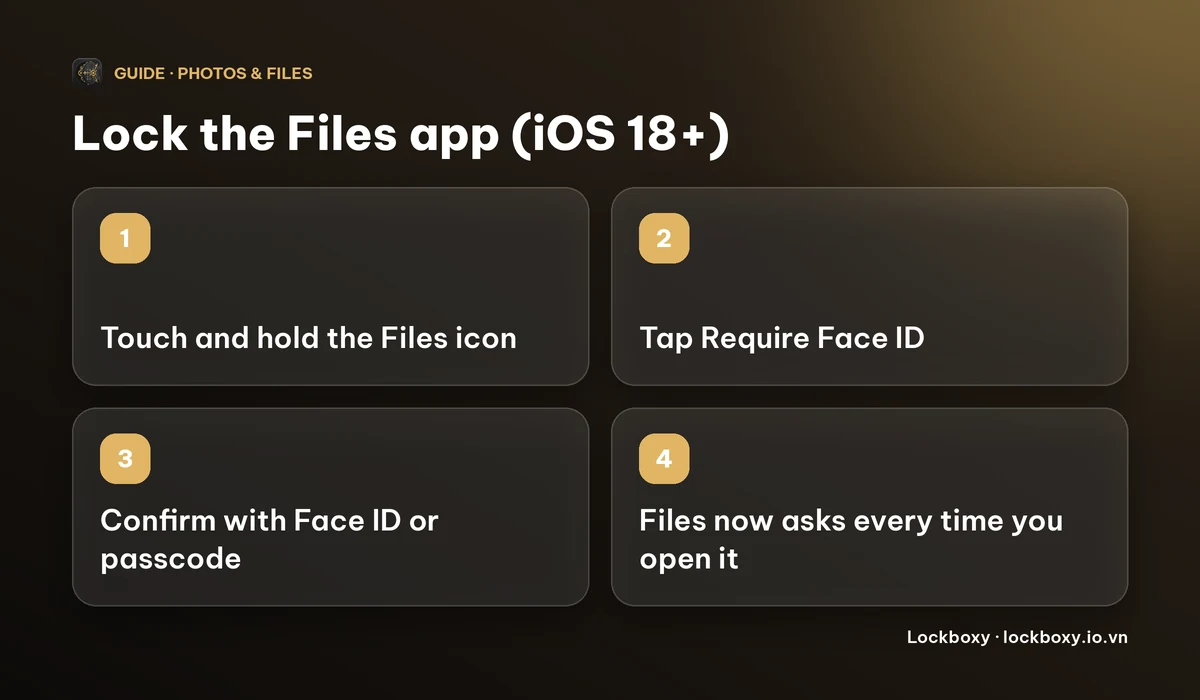
On iOS 18 and later you can require Face ID, Touch ID or your passcode every time an app opens, and Files can be one of them. It protects everything in Files at once, not one folder.
- 1On the Home Screen, touch and hold the Files icon.
- 2Tap Require Face ID. On a Touch ID iPhone the entry says Require Touch ID, and without either it says Require Passcode.
- 3Confirm with Face ID or your passcode.
This works on iOS 18 or later only; on iOS 17 and earlier the menu is not there. It also has limits: anyone who knows your iPhone passcode can get in, because the passcode is the fallback for Face ID, and it does not stop someone from seeing the same files through another route, such as the document picker inside a different app. How to lock apps on iPhone goes through that setting and its limits in more detail.
How do I keep documents in a locked note?
The Notes app can lock a single note, and a note can hold attachments such as a PDF or a scan. This is the nearest built-in version of a locked folder: one note per group of documents.
- 1Create a note and attach the files from Notes' attachment menu.
- 2Tap the More button (the three dots) in the note and choose Lock.
- 3Choose a separate Notes password rather than your iPhone passcode, so a person who watched you unlock the phone still can't open the note.
- 4Delete the original from Files, and then from Files' Recently Deleted, or the unlocked copy is still there.
A locked note is a reasonable choice for a handful of documents. It is awkward for many files, and locked notes can't be used with some sharing and collaboration features. How to lock notes on iPhone covers the setup.
How do I keep documents in an encrypted vault instead?
A vault app is closer to what most people mean by a locked folder: the files live inside the app, encrypted, behind a passcode of their own. Lockboxy's Files area works this way.
- 1Open Lockboxy, go to Files and tap +.
- 2Choose Import files and pick your documents, or choose Scan a document to scan paper straight into the vault. You can also send a file in from the Files app or Mail through the Share Sheet.
- 3Lockboxy encrypts each file with AES-256 and stores it in the vault, behind a passcode that is separate from your iPhone passcode. There is no account and no server holding your documents.
- 4Delete the original. Importing makes a copy; it does not remove the file you picked. Delete it in Files, then empty Files' Recently Deleted.
Inside the vault, PDFs, images and text files open in a preview, and a zip file shows a list of what is inside. Other types, such as Word documents, are stored encrypted but can't be previewed in the app yet. Lockboxy's Files area is for keeping and viewing, so keep the original or a backup if you need to attach a file to an email later.
What does it cost and what are the limits?
- The free plan holds up to 10 files, and a scan saved as separate images counts one file per page, while a PDF counts once. Premium removes that limit.
- There is no account to recover. If you forget the vault passcode and did not set a Recovery Key (Premium), nobody can open the vault, including us. Premium also adds an encrypted backup file you can save to your own cloud, so a lost or replaced phone does not take your documents with it. See how to move private photos to a new iPhone.
Prices and which plan includes what are on the Premium page; the app shows the exact price before you buy.
Which option should I choose?
- A few documents, and your worry is a friend glancing at your phone: a locked note with its own password.
- A phone shared with family, or a lot of documents: a vault with its own passcode.
- Either way: lock the Files app on iOS 18 or later, and delete leftover copies in Files, Photos, Mail and chat apps. How to store photos of your ID safely walks through that clean-up.
Frequently asked questions
Can I put a password on a folder in the iPhone Files app?
No. Files has no password or lock for a folder or a single file. You can lock the whole Files app with Face ID on iOS 18 or later, use a locked note, or use a vault app.
Does Compress in Files make a password-protected zip?
No. The Compress action creates a zip file without a password option.
Does importing a file into Lockboxy remove the original?
No. Importing creates an encrypted copy in the vault. Delete the original yourself in Files, then clear Recently Deleted.
Can I open a Word document inside Lockboxy?
It can be stored encrypted, but the app previews only PDFs, images, text files and zip contents so far. Other types show Preview not available.
Is Lockboxy's Files area free?
The free plan holds up to 10 files. Premium removes that limit and the ads; the app shows the exact price before you buy.
Want a private place with its own passcode?
Lockboxy encrypts photos, videos, files and notes on your device, behind a passcode separate from your phone's. No account, no server.
Get Lockboxy on the App StoreMore guides
- How to lock apps on iPhone: Face ID lock, hidden apps and older-iOS workarounds
- How to lock notes on iPhone with a password or Face ID
- How to scan documents on iPhone (no app needed) and store them safely
- How to store photos of your ID safely on your phone
- How to hide photos on iPhone (and what “hidden” really protects)
- How to permanently delete photos on iPhone (and every copy you forgot)
- How to store passwords safely on your phone
- How to lend your iPhone without exposing your photos
- How to store a seed phrase safely (and what not to do)
- What to do before sending your iPhone for repair
- How to take photos that don't save to your iPhone camera roll
- How to store 2FA backup codes safely (and where not to)
- How to handle sensitive screenshots on iPhone (bank transfers, OTPs, IDs)
- How to keep voice recordings private on iPhone
- How to stop iPhone photos syncing to your iPad and Mac
- What to do when your iPhone is lost or stolen
- How to erase your iPhone before selling it
- Lockboxy vs the iPhone Hidden album: which should you use?
- Lockboxy vs locked notes on iPhone: which is better for private notes?
- Phone privacy for livestream sellers: keep customer data off the stream
- Keeping client documents private: a phone routine for real-estate agents
- How to hide contacts on iPhone: what really works
- How to tell if someone went through your iPhone
- How to move private photos to a new iPhone
Questions about how Lockboxy works? Read the FAQ