
How to remove location data from photos on iPhone before sharing
Published October 10, 2026
Photos from your iPhone usually carry hidden details called metadata, including where and when the picture was taken and which camera took it. To share a photo without its location, open it in Photos, tap Share, tap Options at the top of the share sheet and turn Location off. You can also stop the Camera from recording location at all.
That covers the common case, but not every route out of your phone goes through that switch. Here is each way to do it, and what each one leaves behind.
What does a photo's location data actually reveal?
When the Camera app has location access, it saves the coordinates of where you stood into the photo file. Anyone who receives the original file and opens it in a tool that shows metadata can see them. A photo taken at home can therefore point to your home, and one of an item for sale can point to where you keep it.
Many chat and social apps remove or hide this when you post, but what they do differs from app to app and changes over time, so don't assume every app does it. The safe habit is to send a copy that no longer has the location.
How do I share a photo without its location?
This is the quickest fix, and it leaves your library alone: it only changes the copy you send.
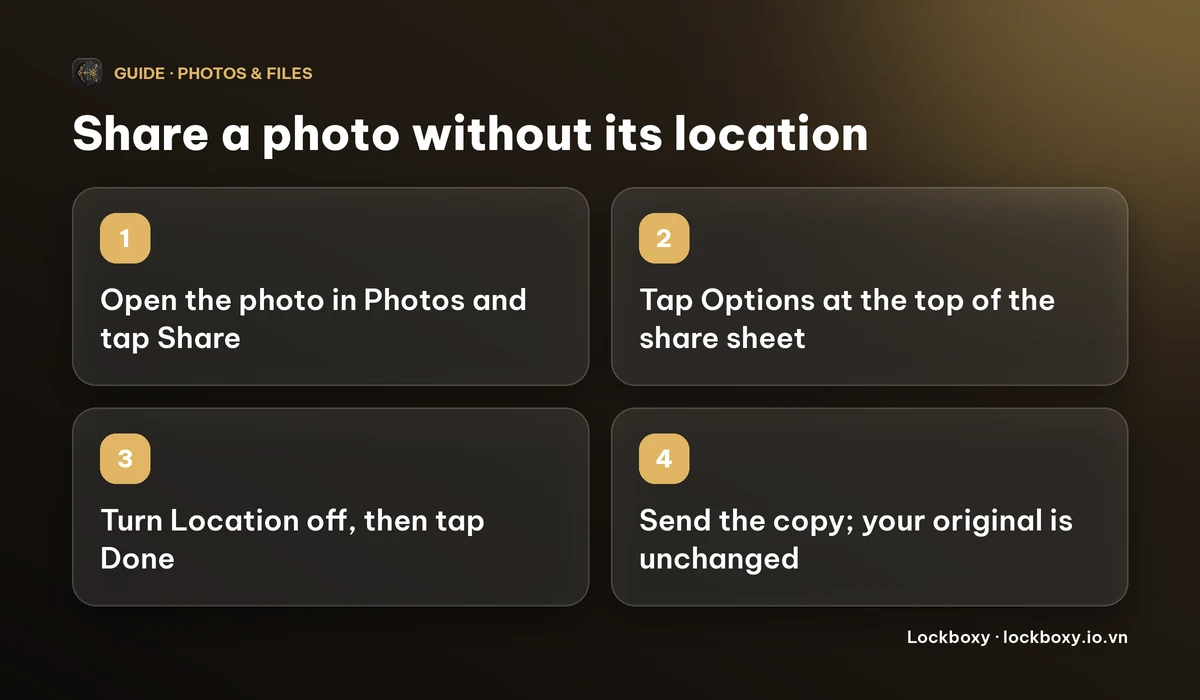
- 1Open the photo in the Photos app and tap Share.
- 2Tap Options at the top of the share sheet.
- 3Turn Location off (on some iOS versions this sits under All Photos Data), then tap Done.
- 4Choose where to send it, such as Mail, AirDrop or a message.
Two limits apply. This works when you share from Photos; if you attach a picture from inside another app's own picker, you may not get this option. And it removes the location, but the copy can still carry other details such as the date or camera, depending on the iOS version, so don't count on it as a full clean.
How do I remove the location from a photo I keep?
- 1Open the photo and swipe up, or tap the info (i) button, to see the map.
- 2Tap Adjust next to the location and choose to remove it (the wording is No Location on recent iOS versions).
Photos keeps the original, so you can bring the location back later with Revert. That makes it a good fit for a photo you will keep sharing, and a poor fit if you want the original to be gone for good.
How do I stop new photos from recording a location?
- 1Open Settings, then Privacy & Security, then Location Services.
- 2Scroll to Camera and choose Never.
New photos will no longer carry coordinates. Older ones keep theirs, so you still need the steps above for those. The trade-off is that your photos will no longer sort by place in Photos and Memories.
How does Lockboxy handle this for photos in the vault?
If you keep photos in Lockboxy, sharing one from the vault goes through the same idea, with the clean copy as the default.
- 1Open the photo in Photos & Videos and tap Share (or Save a copy).
- 2An options sheet appears first. By default it says location and camera details are removed from the copy, and that the original in Lockboxy stays exactly as it is.
- 3Tap Share. Lockboxy decrypts the photo only long enough to prepare the copy, and wipes that temporary copy when the share finishes.
Videos get the same treatment. For photos, the copy is a freshly written image rather than your original with a field switched off, and it is checked before it is handed over: if location, make, model or capture date survived, Lockboxy refuses to share it instead of sending it anyway. A PNG stays a PNG; other photos are saved as JPEG.
If you ever need the original details, the sheet has a Keep original metadata switch, off by default. Image files saved in Lockboxy's Files area, such as a scanned ID saved as images, have the same Share option.
What does it cost, and what doesn't it cover?
- Removing location and camera details from a shared or saved copy is free. Premium adds an optional watermark for photos, such as “Only for apartment rental” and the date, which helps when you must send a photo of an ID or a document. See how to store photos of your ID safely.
- It protects copies that leave Lockboxy. It does not change what is written on the picture itself, so a visible street sign or house number is still there. Look at the photo before you send it.
- Importing a photo into the vault makes a copy, so the original, with its location, remains in Photos until you delete it. See how to hide photos on iPhone.
Prices and which plan includes what are on the Premium page; the app shows the exact price before you buy.
Frequently asked questions
Does iPhone remove location data from photos automatically?
No. If the Camera has location access, new photos include it. You can turn it off per share in the Options of the share sheet, or stop it for future photos in Settings.
Does turning off Location in the share sheet change my original photo?
No. It only changes the copy you send. Your original keeps its details.
Can I remove the location from a photo and bring it back later?
Yes. In Photos, the Adjust option next to the location removes it from the photo, and Revert restores the original.
Does Lockboxy strip location when I share a photo from the vault?
Yes, by default. The copy that leaves the vault has no location or camera details, and the original in Lockboxy is untouched. You can choose Keep original metadata for a single share.
Is removing metadata in Lockboxy a Premium feature?
No, it is free. Premium adds the optional watermark for photos.
Want a private place with its own passcode?
Lockboxy encrypts photos, videos, files and notes on your device, behind a passcode separate from your phone's. No account, no server.
Get Lockboxy on the App StoreMore guides
- How to store photos of your ID safely on your phone
- How to hide photos on iPhone (and what “hidden” really protects)
- How to handle sensitive screenshots on iPhone (bank transfers, OTPs, IDs)
- How to take photos that don't save to your iPhone camera roll
- How to lock apps on iPhone: Face ID lock, hiding apps and older-iOS workarounds
- How to permanently delete photos on iPhone (and every copy you forgot)
- How to lock notes on iPhone with a password or Face ID
- How to store passwords safely on your phone
- How to lend your iPhone without exposing your photos
- How to store a seed phrase safely (and what not to do)
- What to do before sending your iPhone for repair
- How to scan documents on iPhone (no app needed) and store them safely
- How to store 2FA backup codes safely (and where not to)
- How to keep voice recordings private on iPhone
- How to stop iPhone photos syncing to your iPad and Mac
- What to do when your iPhone is lost or stolen
- How to erase your iPhone before selling it
- Lockboxy vs the iPhone Hidden album: which should you use?
- Lockboxy vs locked notes on iPhone: which is better for private notes?
- Phone privacy for livestream sellers: keep customer data off the stream
- Keeping client documents private: a phone routine for real-estate agents
- How to hide contacts on iPhone: what really works
- How to tell if someone went through your iPhone
- How to move private photos to a new iPhone
- How to password protect a folder on iPhone
- How to store bank card details safely on your phone
- How to find and share a saved Wi-Fi password on iPhone
- How to stop unwanted photos from showing up in Memories and Featured Photos on iPhone
Questions about how Lockboxy works? Read the FAQ