
How to find and share a saved Wi-Fi password on iPhone
Published October 12, 2026
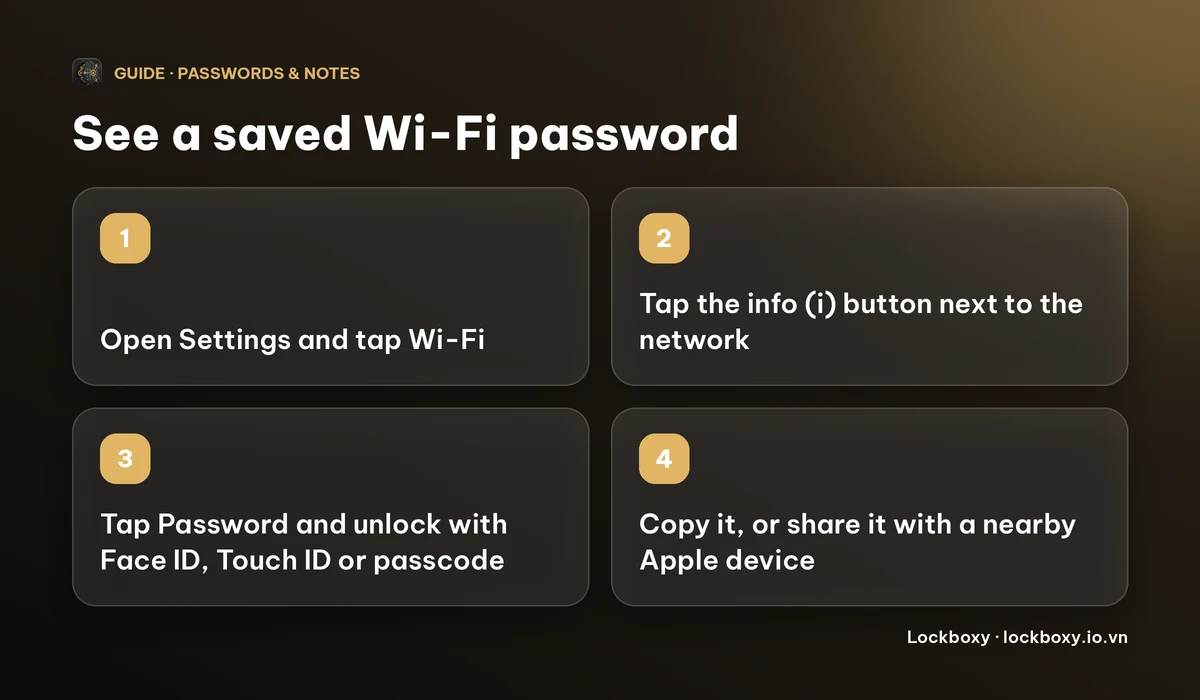
On iPhone with iOS 16 or later, open Settings, tap Wi-Fi, tap the info (i) button next to a network you have joined, tap Password and unlock with Face ID, Touch ID or your passcode. You can then copy it. On iOS 18 and later the Passwords app also lists your Wi-Fi networks.
That only works for networks your iPhone has already connected to. Here is each way to find or share a password, what to do on older iOS, and where to keep a Wi-Fi password your phone does not hold.
How do I see the password of the Wi-Fi I'm connected to?
- 1Open Settings and tap Wi-Fi.
- 2Tap the info (i) button next to the network name.
- 3Tap the Password field and unlock with Face ID, Touch ID or your passcode.
- 4The password appears. Tap it to copy it.
This needs iOS 16 or later. On iOS 15 and earlier the password cannot be shown on the phone; a Mac signed in to the same Apple Account with iCloud Keychain can show it in Keychain Access, or you can look on the router's label or in its settings page.
How do I find the password of a network I joined before?
Your iPhone remembers networks it has joined, and you can look up those too.
- 1Open Settings and tap Wi-Fi.
- 2Tap Edit (on some iOS versions the list of known networks is under My Networks).
- 3Unlock if asked, tap the info (i) button next to the network, then tap Password.
On iOS 18 and later you can also open the Passwords app and choose Wi-Fi to see the networks saved on this phone. The menus move a little between iOS versions, so if a step looks different on your phone, look for the same words: Wi-Fi, a known network, then Password.
Whatever the route, a password can only be shown for a network this iPhone has successfully joined. A network you only looked at and never connected to has nothing saved.
How do I share the password with a guest without typing it?
Apple devices can pass a Wi-Fi password to each other. It works when the other person has an Apple device, and the details are Apple's, so check Apple's support page for your iOS version.
- 1Unlock your iPhone and stay connected to the Wi-Fi network.
- 2On your guest's device, open Settings, tap Wi-Fi and choose the same network.
- 3A prompt to share the Wi-Fi password appears on your iPhone. Tap Share Password, then Done.
Keep the phones close together and keep Bluetooth and Wi-Fi turned on. If the prompt does not appear, restart Wi-Fi on both devices, or just read the password out from the screen shown in the steps above.
For visitors who do not use an Apple device, or for people you would rather not give your main password to, many routers can create a separate guest network. That keeps your own devices off the network your guests use. How to turn it on depends on your router.
Where should I keep a Wi-Fi password my phone doesn't hold?
Your iPhone only knows the networks it has joined. The password for a holiday rental, an office, a parents' house or a router you are about to set up has to live somewhere else, and the usual places are a photo of the router label, a message to yourself or a plain note. All of them are easy to read for anyone who opens your phone or your shared photo library.
A few habits help wherever you keep it:
- Change the router's default password. It is often printed on a sticker on the router, so anyone who sees the sticker, or a photo of it, has it.
- Use a long, unique password for the network. You can type it once into each device; or, as above, share it between Apple devices.
- Delete photos of router labels you no longer need, and empty Recently Deleted. See how to permanently delete photos on iPhone.
- Keep other passwords out of plain notes too. See how to store passwords safely on your phone.
How do I keep a Wi-Fi password in Lockboxy?
Lockboxy is a private, encrypted vault for iPhone. Its Wallet has a ready-made entry type for a Wi-Fi password, so you do not have to squeeze it into a note. Everything in it is encrypted with AES-256-GCM on your device, there is no account, and no server holds a copy.
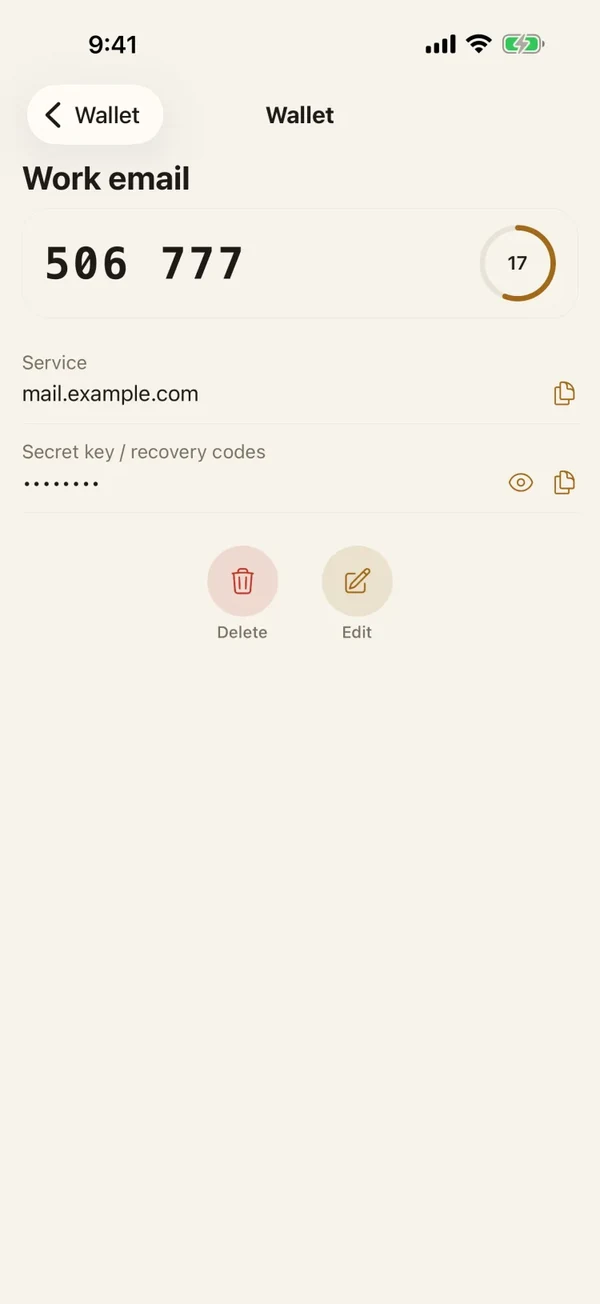
- 1Open Lockboxy with its passcode and go to the Wallet tab.
- 2Tap Add entry and choose WiFi password.
- 3Fill in the Title (for example, Home WiFi), the network name (SSID) and the password. Notes are optional.
- 4Save. The password is masked with dots by default; tap Show on the entry when you need to read it.
- 5To use it, tap Copy. Lockboxy clears the copied value from the clipboard about 30 seconds later.
If you delete an entry it goes to the Recycle Bin first, so you can restore it if you deleted it by mistake. The same Wallet also keeps bank cards, account passwords, PIN codes and 2FA or recovery codes, see how to store bank card details safely.
What are the limits of this approach?
- Lockboxy does not connect your phone to Wi-Fi, fill in a network password for you or share it with a nearby phone. It is a place to keep and read a password. To join a network, use Settings, or the Apple sharing prompt above.
- It does not read the passwords your iPhone has already saved. If a network is saved on the phone, look it up with the steps above; add it to Lockboxy only if you want a copy kept there.
- The vault key comes from your passcode. If you forget it, nobody, including us, can open the vault, unless you made a Recovery Key (Premium) beforehand. Keep the passcode somewhere safe.
- Entries in the Wallet are unlimited on the free plan. Which plan includes what, and the price, are on the Premium page; the app shows the exact price before you buy.
Frequently asked questions
Why can't I see my Wi-Fi password on my iPhone?
Showing a saved password needs iOS 16 or later, and the iPhone must have joined that network successfully before. On iOS 15 and earlier, use Keychain Access on a Mac signed in to the same Apple Account with iCloud Keychain, or check the router's label or settings page.
Is it safe to look up a Wi-Fi password in Settings?
It is protected: the phone asks for Face ID, Touch ID or your passcode before showing it. Anyone who knows your passcode can see it, so keep the passcode private.
Can I share my Wi-Fi password with an Android phone from my iPhone?
The built-in sharing prompt is for Apple devices. For other phones, read the password out or type it in, or use a guest network if your router offers one.
Is a photo of the router label a safe way to keep the password?
Not in your normal photo library. Photos are easy to open, share and sync, and the password is readable in them. Keep it in an encrypted place instead and delete the photo.
Can Lockboxy show the Wi-Fi passwords my iPhone already saved?
No. It does not read passwords saved by iOS. You can add a network to its Wallet yourself: a WiFi password entry stores the network name and password, encrypted on your device.
Want a private place with its own passcode?
Lockboxy encrypts photos, videos, files and notes on your device, behind a passcode separate from your phone's. No account, no server.
Get Lockboxy on the App StoreMore guides
- How to store passwords safely on your phone
- How to store bank card details safely on your phone
- How to store 2FA backup codes safely (and where not to)
- How to hide photos on iPhone (and what “hidden” really protects)
- How to lock apps on iPhone: Face ID lock, hiding apps and older-iOS workarounds
- How to store photos of your ID safely on your phone
- How to permanently delete photos on iPhone (and every copy you forgot)
- How to lock notes on iPhone with a password or Face ID
- How to lend your iPhone without exposing your photos
- How to store a seed phrase safely (and what not to do)
- What to do before sending your iPhone for repair
- How to take photos that don't save to your iPhone camera roll
- How to scan documents on iPhone (no app needed) and store them safely
- How to handle sensitive screenshots on iPhone (bank transfers, OTPs, IDs)
- How to keep voice recordings private on iPhone
- How to stop iPhone photos syncing to your iPad and Mac
- What to do when your iPhone is lost or stolen
- How to erase your iPhone before selling it
- Lockboxy vs the iPhone Hidden album: which should you use?
- Lockboxy vs locked notes on iPhone: which is better for private notes?
- Phone privacy for livestream sellers: keep customer data off the stream
- Keeping client documents private: a phone routine for real-estate agents
- How to hide contacts on iPhone: what really works
- How to tell if someone went through your iPhone
- How to move private photos to a new iPhone
- How to password protect a folder on iPhone
- How to remove location data from photos on iPhone before sharing
- How to stop unwanted photos from showing up in Memories and Featured Photos on iPhone
Questions about how Lockboxy works? Read the FAQ