
How to stop unwanted photos from showing up in Memories and Featured Photos on iPhone
Published October 13, 2026
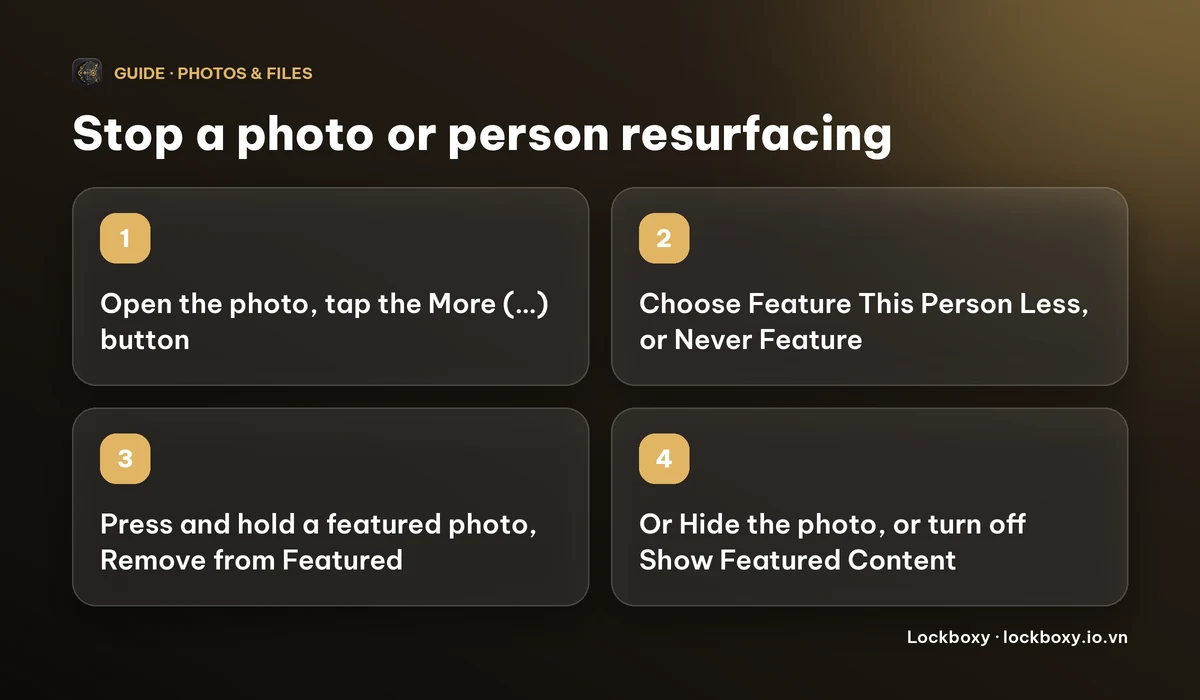
On iPhone, open the photo, tap the More (…) button and choose Feature This Person Less or Never Feature This Person to keep someone out of Memories. To stop one photo, press and hold it in Featured Photos and choose Remove from Featured Photos, or hide it. To stop the feature altogether, switch off Show Featured Content in the Photos settings.
These settings only change what the Photos app suggests. The photos stay in your library. This guide covers each option, where the menu names depend on your iOS version, and what to do when the photo should not be in your library at all.
Why do old photos keep popping up on my iPhone?
The Photos app builds Memories and Featured Photos from your library automatically: by date, place, trip and the people it recognises. It then shows them in the For You tab, in Search, in notifications and in the Photos widget on the Home Screen or Lock Screen. A photo you forgot about, or a person you would rather not see, can come up without you asking for it.
The reliable fixes are to tell Photos to feature that person less, to remove or hide single photos, or to turn the suggestions off. Which one fits depends on what you want to avoid.
How do I keep a person out of Memories?
- 1Open a photo of the person in the Photos app.
- 2Tap the More (…) button, or the info (i) button on some iOS versions. If more than one person is in the photo, tap the one you mean first.
- 3Choose Feature This Person Less or Never Feature This Person.
Feature This Person Less keeps them out of most Memories, though they may still turn up in group photos. Never Feature This Person is stricter and also leaves out group photos that include them.
The option only appears for faces that Photos has recognised and named or grouped, and the exact wording and location of the menu change between iOS versions. You can also open the People & Pets album, open the person and use the same menu there. Apple's own page on Memories for your iOS version is the place to confirm the current names.
How do I remove one photo from Featured Photos and the widget?
- 1Open Photos and go to For You, then Featured Photos. Tap the arrow to see them all.
- 2Press and hold the photo you do not want.
- 3Choose Remove from Featured Photos.
If you use the Photos widget, you can also long-press it, tap Edit Widget and choose a specific album, so it only shows pictures from an album you picked yourself. That does not stop the other features from suggesting a photo, so treat it as a tidy-up, not as privacy.
To remove a single Memory, open it, tap the More (…) button and look for Delete Memory. It deletes the Memory movie, not your photos, and Photos may build a new one later if the photos are still in your library.
How do I turn off Featured Content completely?
- 1Open Settings, then Apps, then Photos. On iOS 16 and 17 it is simply Settings, then Photos.
- 2Find Show Featured Content and switch it off.
This stops Photos from suggesting featured photos and memories in places like Search, For You and the widget. The setting names move a little between iOS versions, so look for the words Featured Content in the Photos settings. Your photos and albums are untouched, and you can switch it back on at any time.
What if the photo should not be in my library at all?
Feature settings are a polite request to an algorithm. The photo is still in your library, still syncs through iCloud Photos, still appears in a search, and anyone you hand the phone to can still scroll to it.
Hiding it moves it to the Hidden album, which takes it out of the library, Memories, Featured Photos and widgets. Since iOS 16 the Hidden album can also ask for Face ID, Touch ID or your passcode; check Settings, then Apps, then Photos, and make sure Use Face ID is on. The photo is still part of the Photos app and still syncs, so see how to hide photos on iPhone for what that does and does not protect.
If you want it gone for good, deleting it first moves it to Recently Deleted, where it stays for up to 30 days. See how to permanently delete photos on iPhone for every copy you may have forgotten.
How do I keep a photo you want to keep but never see surfacing?
For a picture you want to keep but never meet by accident, the cleanest option is to keep it somewhere the Photos app does not index. Lockboxy is a private, encrypted vault for iPhone; photos stored in it are not part of your Photos library, so they cannot appear in Memories, Featured Photos or the widget.
- 1Open Lockboxy with its passcode and go to the Media tab.
- 2Import the photos from your library.
- 3Optionally choose to remove the originals from your library. iOS shows its own confirmation before anything is deleted, and deleted photos still sit in Recently Deleted for up to 30 days until you empty it.
Everything in Lockboxy is encrypted with AES-256 on your device. There is no account and no server holding a copy. See Lockboxy vs the iPhone Hidden album for an honest comparison.
What are the limits of this approach?
- Removing the originals is optional, so if you leave them, the photos stay in your library and can still surface there.
- Copies elsewhere are not touched: a shared album, a Shared Library, a chat app's own saved copy and other backups.
- The vault key comes from your passcode. If you forget it, nobody, including us, can open the vault, unless you made a Recovery Key (Premium) beforehand. Without an encrypted backup the vault exists only on that one phone.
- Which plan includes what, and the price, are on the Premium page; the app shows the exact price before you buy.
Frequently asked questions
How do I stop my ex from showing up in iPhone Memories?
Open a photo of them, tap the More button and choose Feature This Person Less or Never Feature This Person. Never is stricter and also leaves out group photos. The option needs Photos to have recognised the face, and menu wording varies by iOS version.
Does hiding a photo remove it from Memories and Featured Photos?
Yes. A hidden photo moves to the Hidden album and is left out of the library, Memories, Featured Photos and widgets. It is still in the Photos app and still syncs through iCloud Photos.
Will turning off Show Featured Content delete my photos?
No. It only stops Photos from suggesting featured photos and memories. Your photos and albums stay as they were, and you can turn it back on whenever you like.
Can I delete a Memory without deleting the photos in it?
Yes. Open the Memory, tap the More button and choose Delete Memory. Only the generated Memory is removed. Photos can create a new one later if the pictures are still in your library.
Do photos kept in Lockboxy appear in Memories?
No. Photos in Lockboxy are stored inside the app's encrypted vault, not in the Photos library, so Photos cannot use them for Memories, Featured Photos or the widget. Any original you leave in your library still can.
Want a private place with its own passcode?
Lockboxy encrypts photos, videos, files and notes on your device, behind a passcode separate from your phone's. No account, no server.
Get Lockboxy on the App StoreMore guides
- How to hide photos on iPhone (and what “hidden” really protects)
- Lockboxy vs the iPhone Hidden album: which should you use?
- How to permanently delete photos on iPhone (and every copy you forgot)
- How to lock apps on iPhone: Face ID lock, hiding apps and older-iOS workarounds
- How to store photos of your ID safely on your phone
- How to lock notes on iPhone with a password or Face ID
- How to store passwords safely on your phone
- How to lend your iPhone without exposing your photos
- How to store a seed phrase safely (and what not to do)
- What to do before sending your iPhone for repair
- How to take photos that don't save to your iPhone camera roll
- How to scan documents on iPhone (no app needed) and store them safely
- How to store 2FA backup codes safely (and where not to)
- How to handle sensitive screenshots on iPhone (bank transfers, OTPs, IDs)
- How to keep voice recordings private on iPhone
- How to stop iPhone photos syncing to your iPad and Mac
- What to do when your iPhone is lost or stolen
- How to erase your iPhone before selling it
- Lockboxy vs locked notes on iPhone: which is better for private notes?
- Phone privacy for livestream sellers: keep customer data off the stream
- Keeping client documents private: a phone routine for real-estate agents
- How to hide contacts on iPhone: what really works
- How to tell if someone went through your iPhone
- How to move private photos to a new iPhone
- How to password protect a folder on iPhone
- How to remove location data from photos on iPhone before sharing
- How to store bank card details safely on your phone
- How to find and share a saved Wi-Fi password on iPhone
Questions about how Lockboxy works? Read the FAQ