
How to store bank card details safely on your phone
Published October 12, 2026
The safest way to store bank card details on your phone is to avoid keeping the number at all: add the card to Apple Pay and let the phone pay for you. If you do have to keep a card number, Lockboxy's Wallet stores it in an encrypted vault behind its own passcode, with the number and CVV masked until you tap Show. Never keep it in a photo, a screenshot or an ordinary note.
Here is how to choose between the options, step by step, and what to do about the card details that are already sitting in your photo library.
Why are a photo or a note a bad place for card details?
A photo of the front and back of a card, or a note with the number and CVV, is readable by anyone who opens your unlocked phone. Photos also tend to sync to other devices and to a cloud backup, and they appear in the photo picker of every app you grant access to. A card number in a plain note is searchable in seconds.
The trouble is that these are the easiest places to put a number you will need again, so people use them. The better choice depends on why you need the number.
How do I pay without keeping the number at all?
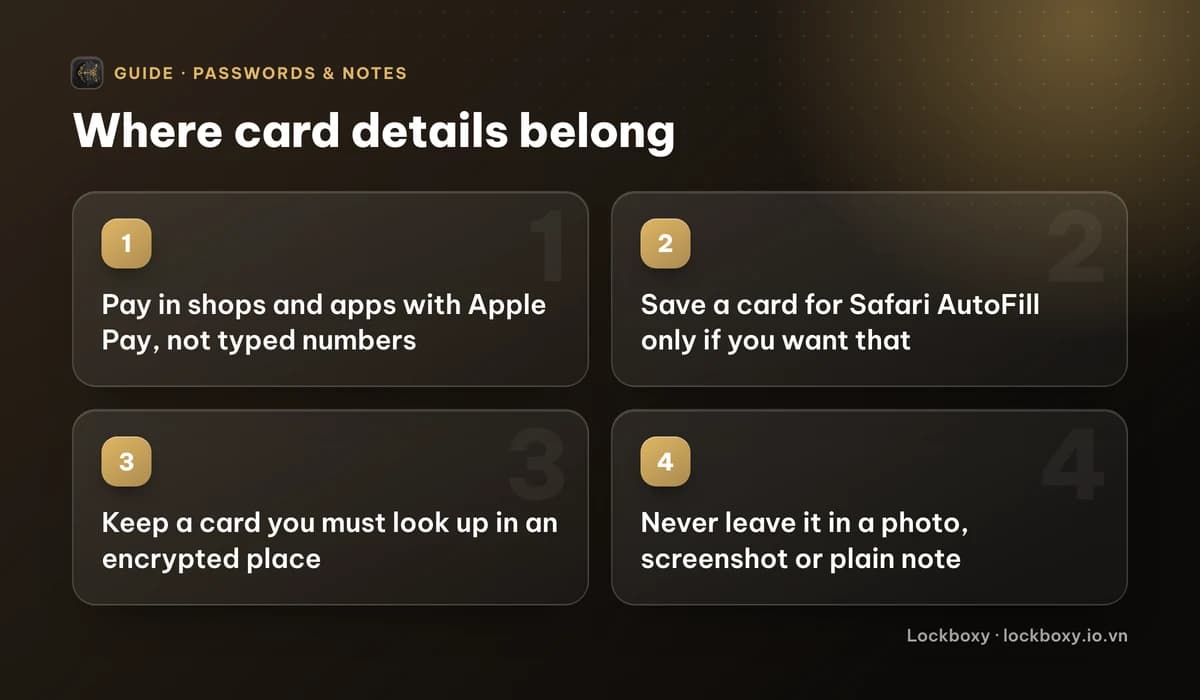
For everyday payments, you rarely need to see the number again. Apple Pay uses a device-specific number instead of your real card number when you pay, so a shop or app never receives your actual number.
- 1Open the Wallet app and tap the plus (+) button.
- 2Choose Debit or Credit Card and follow the steps to scan or enter the card. Your bank may ask you to verify it with a code.
- 3To pay in a shop or an app, double-click the side button and look at your iPhone to authenticate (or use your passcode).
Which banks and cards support Apple Pay varies by country, so check with your bank. Many banking apps also let you lock a card, turn online payments on and off or set a limit; if your bank offers these, they are worth switching on.
How do I use Safari AutoFill for online checkouts?
AutoFill can fill in a saved card on web checkouts so you do not have to type it. You choose whether to use it.
- 1Open Settings and go to Apps, then Safari, then AutoFill (on older iOS versions it is Settings, then Safari, then AutoFill).
- 2Tap Credit Cards and turn it on.
- 3Add a card, or check the ones already saved and delete any you no longer use.
The menus move a little between iOS versions. Whatever the version, remember that AutoFill is meant for convenience while you are shopping; it is not a place to look up a card number on purpose. That is the gap the next option fills.
What if I need to look up a card number later?
Sometimes you do need the number in front of you: a card for a family member, a work card, a card you use on a site that does not accept Apple Pay, or the numbers you read out when you set up a subscription on another device. For those, keep it in a vault that is encrypted and locked, not in Photos or Notes.
A few habits help wherever you keep it:
- Store only what you need. A card number and expiry are often enough; think before saving more.
- Never read a card number or a one-time code out to someone who rings you, whoever they say they are. A bank will not ask for a full number or a code over the phone.
- Delete old photos of cards. Check your library for them, and remember a deleted photo stays in Recently Deleted for a while. See how to permanently delete photos on iPhone.
- Treat a card screenshot like the card itself. See how to handle sensitive screenshots on iPhone.
How do I store a card in Lockboxy?
Lockboxy is a private, encrypted vault for iPhone, and its Wallet area is built for exactly this: structured entries rather than loose photos. Everything in it is encrypted with AES-256-GCM on your device, there is no account, and no server holds a copy.
- 1Open Lockboxy with its passcode and go to the Wallet tab.
- 2Tap Add entry and choose Bank / credit card.
- 3Fill in the Title (for example, the bank and the card), the card number, the cardholder name, the expiry month and year, and the CVV. Bank name and Notes are optional.
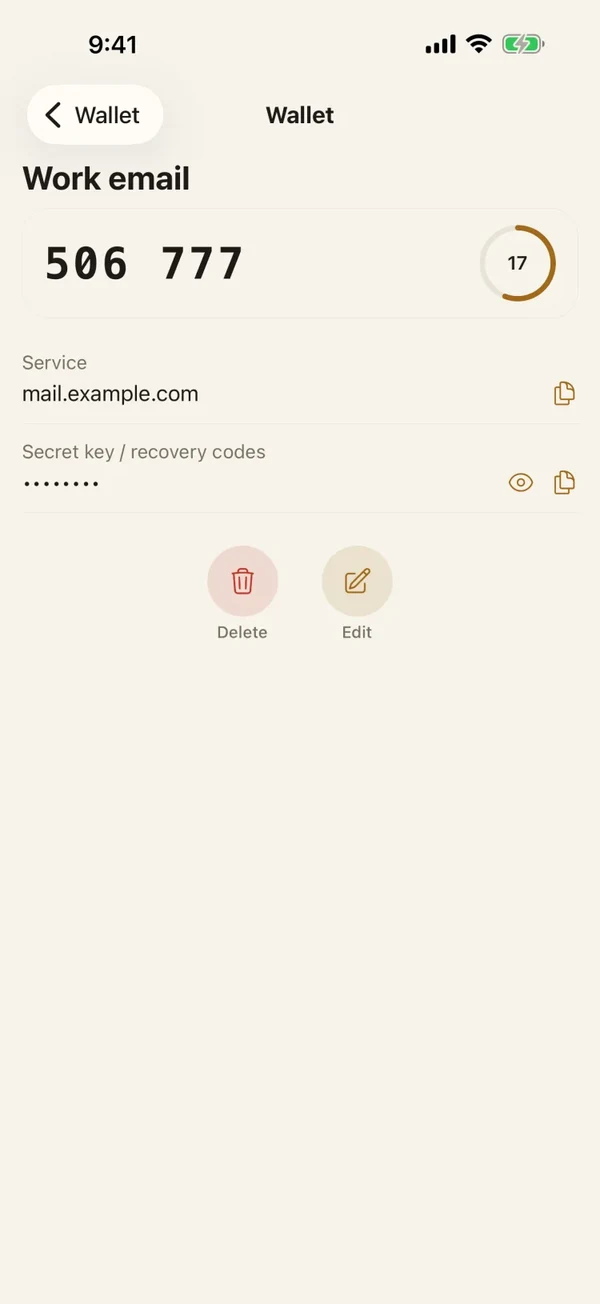
- 4Save. The card number and CVV are masked with dots by default; tap Show on the entry when you need to read one.
- 5To use a value, tap Copy. Lockboxy clears the copied value from the clipboard about 30 seconds later, so it does not linger for other apps to paste.
Each sensitive field is encrypted individually, and the entry fields are marked so that iOS does not offer to save them to iCloud Keychain. If you delete an entry, it first goes to the Recycle Bin, so you can restore it if you deleted it by mistake. The same Wallet also holds passwords, Wi-Fi logins, PIN codes and 2FA or recovery codes, see how to store 2FA backup codes safely.
What are the limits of this approach?
- Lockboxy does not pay for anything or fill in checkout forms; it is a place to keep and read a card, not a payment method. Use Apple Pay for paying.
- The vault key comes from your passcode. If you forget it, nobody, including us, can open the vault, unless you made a Recovery Key (Premium) beforehand. Keep the passcode somewhere safe.
- Entries in the Wallet are unlimited on the free plan. Which plan includes what, and the price, are on the Premium page; the app shows the exact price before you buy.
- If a card is lost or you suspect misuse, call your bank first. A vault does not replace that.
For passwords, see how to store passwords safely on your phone.
Frequently asked questions
Is it safe to take a photo of my bank card?
Not in your normal photo library. Photos are easy to open, share and sync, and the card number and CVV are readable in them. If you already have one, delete it and empty Recently Deleted.
Does Apple Pay send my real card number to the shop?
No. Apple Pay uses a device-specific number for the payment instead of your actual card number. Check with your bank whether your card is supported in your country.
Can I keep a card number in Apple Notes?
You can lock a note, but a note is still a general-purpose place with a lot of other content, and it is easy to share by accident. A structured, encrypted entry is a better fit for a card.
What does Lockboxy store for a bank card?
The title, card number, cardholder name, expiry month and year, CVV, and optionally the bank name and notes. They are encrypted on your device, and the card number and CVV are masked until you tap Show.
Can Lockboxy pay or fill in card details on websites?
No. It is a place to keep and read card details. For paying, use Apple Pay or your bank's app.
Want a private place with its own passcode?
Lockboxy encrypts photos, videos, files and notes on your device, behind a passcode separate from your phone's. No account, no server.
Get Lockboxy on the App StoreMore guides
- How to store passwords safely on your phone
- How to store 2FA backup codes safely (and where not to)
- How to handle sensitive screenshots on iPhone (bank transfers, OTPs, IDs)
- How to store photos of your ID safely on your phone
- How to hide photos on iPhone (and what “hidden” really protects)
- How to lock apps on iPhone: Face ID lock, hiding apps and older-iOS workarounds
- How to permanently delete photos on iPhone (and every copy you forgot)
- How to lock notes on iPhone with a password or Face ID
- How to lend your iPhone without exposing your photos
- How to store a seed phrase safely (and what not to do)
- What to do before sending your iPhone for repair
- How to take photos that don't save to your iPhone camera roll
- How to scan documents on iPhone (no app needed) and store them safely
- How to keep voice recordings private on iPhone
- How to stop iPhone photos syncing to your iPad and Mac
- What to do when your iPhone is lost or stolen
- How to erase your iPhone before selling it
- Lockboxy vs the iPhone Hidden album: which should you use?
- Lockboxy vs locked notes on iPhone: which is better for private notes?
- Phone privacy for livestream sellers: keep customer data off the stream
- Keeping client documents private: a phone routine for real-estate agents
- How to hide contacts on iPhone: what really works
- How to tell if someone went through your iPhone
- How to move private photos to a new iPhone
- How to password protect a folder on iPhone
- How to remove location data from photos on iPhone before sharing
- How to find and share a saved Wi-Fi password on iPhone
- How to stop unwanted photos from showing up in Memories and Featured Photos on iPhone
Questions about how Lockboxy works? Read the FAQ