
How to control which photos an app can access on iPhone
Published October 14, 2026
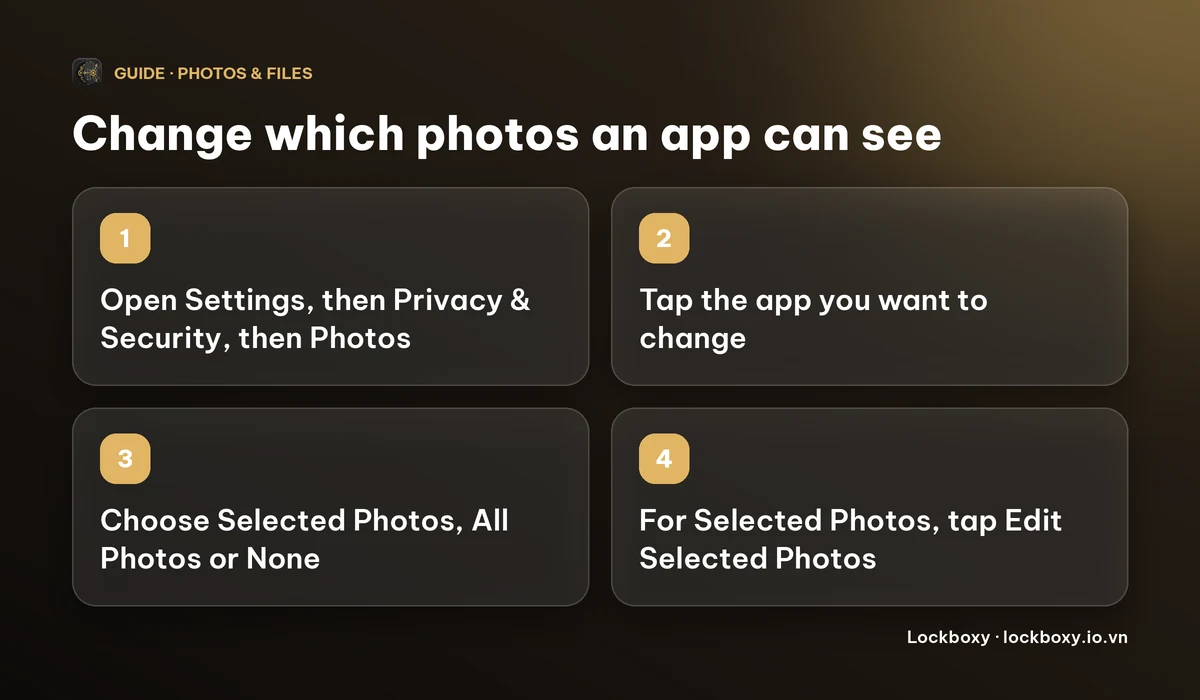
On iPhone, open Settings, go to Privacy & Security, then Photos, and tap the app. You can choose Selected Photos, All Photos or None. With Selected Photos, tap Edit Selected Photos to add or remove pictures. If an app seems to be missing photos, this is almost always the reason.
This guide explains the three levels, how to fix an app that cannot see the photo you want, and what Limited Access does not protect. Menu names depend on your iOS version.
Why can an app only see some of my photos?
The first time an app asks for your photos, iOS offers a choice, usually Select Photos or Allow Access to All Photos. If you picked Select Photos, the app can only see the pictures you chose, and nothing else in your library. This is called Limited Access.
That is by design and it is a good default. It also explains the common complaint that an editing or messaging app shows an almost empty library, or a recent photo is missing: the app was never given that photo.
How do I change which photos an app can see?
- 1Open Settings and go to Privacy & Security, then Photos. On newer iOS versions you can also find the app in the Apps list in Settings and open Photos there.
- 2Tap the app.
- 3Choose Selected Photos, All Photos or None.
- 4With Selected Photos, tap Edit Selected Photos, tick the pictures the app may use, and tap Done.
Some apps only ask to add pictures, for example to save an edited photo. iOS lists those under a separate Add Photos Only option, which lets the app save to your library without reading it.
Menu names and the order of the options differ a little between iOS versions. If you cannot find an option, look for the app's name under Privacy & Security, then Photos.
What if the app still cannot see the photo I want?
- If the app is on Selected Photos, the photo has to be in the selection. Tap Edit Selected Photos and add it.
- Some apps keep showing the old selection until you close them fully and open them again.
- If the setting looks right but nothing changes, switch the app to None, leave Settings, then come back and choose the level you want.
- Check that the photo is on this iPhone. A picture that is only in iCloud Photos may take a moment to download before an app can use it.
Which level should I choose?
- Selected Photos suits apps you only use occasionally to edit or send a picture. You decide what they see.
- All Photos suits an app you trust to work across your whole library, such as a backup tool. It can read everything, including pictures you would rather keep private.
- None suits an app that has no real reason to touch your pictures. You can still share a single photo with it through the system share sheet or the photo picker on most apps.
Periodically iOS reminds you which apps have access to your photos. It is worth a look: an old game or a one-off tool rarely needs more than Selected Photos.
What does Limited Access not protect?
Limiting an app only controls what that app can read. It does not change anything about the photos themselves. They stay in your Photos library, they sync through iCloud Photos if you use it, and anyone who unlocks your iPhone can still open Photos and scroll through everything.
Photos that other apps can see also carry their metadata, such as the date, and often the location. See how to remove location data from photos on iPhone before you share them. And if someone borrows your phone, access settings do not help, see how to lend your iPhone without exposing your photos.
How do I keep sensitive photos out of every app's reach?
If a picture should not be in your library at all, the more reliable option is to store it outside of it. Lockboxy is a private, encrypted vault for iPhone. Photos stored in it are not part of your Photos library, so other apps with Photos access cannot see them.
- 1Open Lockboxy with its passcode and go to the Media tab.
- 2Use the import button and pick the photos in the iOS photo picker. Only the items you pick are imported.
- 3Lockboxy can then offer to delete the originals from your library. iOS asks you to confirm, and deleted photos still sit in Recently Deleted for up to 30 days. See how to hide photos on iPhone for how this compares with the Hidden album.
Lockboxy does not browse your library on its own. The photo-library permission in its iOS settings exists so it can delete originals when you ask it to. Everything stored in the vault is encrypted with AES-256 on your device, with no account and no server holding a copy.
What are the limits of this approach?
- Importing a photo does not remove it from other places. Leave the original and it stays in your library, visible to apps that have access.
- Copies elsewhere are not touched: a shared album, a chat app's own saved copy and other backups.
- The vault key comes from your passcode. If you forget it, nobody, including us, can open the vault, unless you made a Recovery Key (Premium) beforehand.
- Which plan includes what, and the price, are on the Premium page; the app shows the exact price before you buy.
Frequently asked questions
Why does an app only show some of my photos on iPhone?
It was probably given Limited Access. When an app first asked, you chose Select Photos, so it can only see the pictures you picked. Change it in Settings, Privacy & Security, Photos, then the app.
How do I give an app access to all my photos again?
Open Settings, go to Privacy & Security, then Photos, tap the app and choose All Photos. Menu names vary slightly by iOS version.
Can I add or remove photos from an app's Selected Photos?
Yes. In Settings, Privacy & Security, Photos, tap the app, then Edit Selected Photos. Tick or untick pictures and tap Done.
Does Limited Access hide my photos from other people?
No. It only limits what one app can read. Anyone who unlocks your iPhone can still open Photos, and the pictures still sync if you use iCloud Photos.
Can other apps see photos stored in Lockboxy?
No. Photos in Lockboxy are stored inside the app's encrypted vault, not in your Photos library, so other apps cannot read them through Photos access. Any original you leave in your library is still visible to apps that have access.
Want a private place with its own passcode?
Lockboxy encrypts photos, videos, files and notes on your device, behind a passcode separate from your phone's. No account, no server.
Get Lockboxy on the App StoreMore guides
- How to lend your iPhone without exposing your photos
- How to hide photos on iPhone (and what “hidden” really protects)
- How to remove location data from photos on iPhone before sharing
- How to lock apps on iPhone: Face ID lock, hiding apps and older-iOS workarounds
- How to store photos of your ID safely on your phone
- How to permanently delete photos on iPhone (and every copy you forgot)
- How to lock notes on iPhone with a password or Face ID
- How to store passwords safely on your phone
- How to store a seed phrase safely (and what not to do)
- What to do before sending your iPhone for repair
- How to take photos that don't save to your iPhone camera roll
- How to scan documents on iPhone (no app needed) and store them safely
- How to store 2FA backup codes safely (and where not to)
- How to handle sensitive screenshots on iPhone (bank transfers, OTPs, IDs)
- How to keep voice recordings private on iPhone
- How to stop iPhone photos syncing to your iPad and Mac
- What to do when your iPhone is lost or stolen
- How to erase your iPhone before selling it
- Lockboxy vs the iPhone Hidden album: which should you use?
- Lockboxy vs locked notes on iPhone: which is better for private notes?
- Phone privacy for livestream sellers: keep customer data off the stream
- Keeping client documents private: a phone routine for real-estate agents
- How to hide contacts on iPhone: what really works
- How to tell if someone went through your iPhone
- How to move private photos to a new iPhone
- How to password protect a folder on iPhone
- How to store bank card details safely on your phone
- How to find and share a saved Wi-Fi password on iPhone
- How to stop unwanted photos from showing up in Memories and Featured Photos on iPhone
Questions about how Lockboxy works? Read the FAQ