
How to see saved passwords on iPhone (and what to do when one is missing)
Published November 5, 2026
On iPhone, open the Passwords app (iOS 18 or later) or Settings then Passwords (iOS 17 and earlier), unlock with Face ID, Touch ID or your passcode, and pick the site or app. Tap the entry to see the username and password.
This guide covers the steps, what to check when an entry seems to be missing, and what the list does not include. Menu names change between iOS versions, so go by your own screen if a label differs.
Where are my saved passwords on iPhone?
Apple's support pages say the Passwords app needs iOS 18 or later. On iOS 17 and earlier, the same list sits inside Settings under Passwords. On newer versions you can still reach it from Settings, so you do not need to hunt for the app icon.
The list is the one your iPhone fills in when you sign in to a website or app and agree to save the login. If you use iCloud Keychain on several Apple devices, the same entries appear on each of them.
How do I view one password?
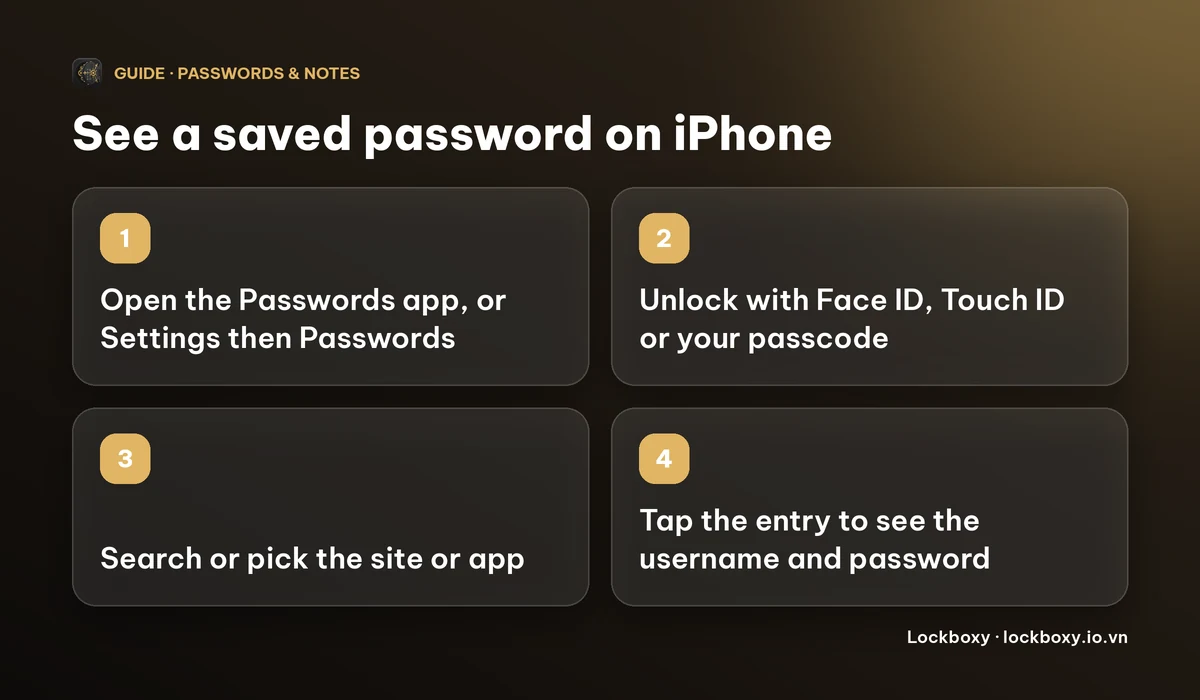
- 1Open the Passwords app, or open Settings and tap Passwords.
- 2Unlock with Face ID, Touch ID or your passcode when asked.
- 3Use the search field, or scroll to the site or app.
- 4Tap the entry. It shows the username and password, and may also show a verification code, the website and notes.
- 5Tap Edit to correct a wrong password, or to delete an entry you no longer want.
The password is hidden as dots until you unlock, which protects it from a quick glance by someone holding your phone. It does not protect it from someone who knows your iPhone passcode, so treat that passcode as the key to every saved login. See what someone can do with your locked iPhone.
Why can't I find a password I know I saved?
- Check the list is on All rather than a single group, and search by the site's name rather than the full address.
- Look in Recently Deleted inside the Passwords app. Apple's pages point there for entries that were removed.
- Check you are signed in with the same Apple Account, and that iCloud Keychain is on, if you saved it on another device.
- If you saved it in a browser such as Chrome, or in a third-party password manager, it is in that app, not in Apple's list.
- A Wi-Fi password is a separate list. See how to find a saved Wi-Fi password.
If you never saved it, the iPhone cannot show it. No setting reveals a password the phone never stored.
What does the list not cover?
The list holds website and app logins. People also need to keep things that do not fit there: a bank card's PIN, a door code, an Apple recovery key, a software licence, a router login. Many end up in Notes or a screenshot, which is the weaker choice. For why, see how to store passwords safely on your phone.
Before you share a password from the list, think about how. A chat message stays in the conversation. See how to share a password with family without sending it in a chat.
Can Lockboxy hold the passwords the list does not?
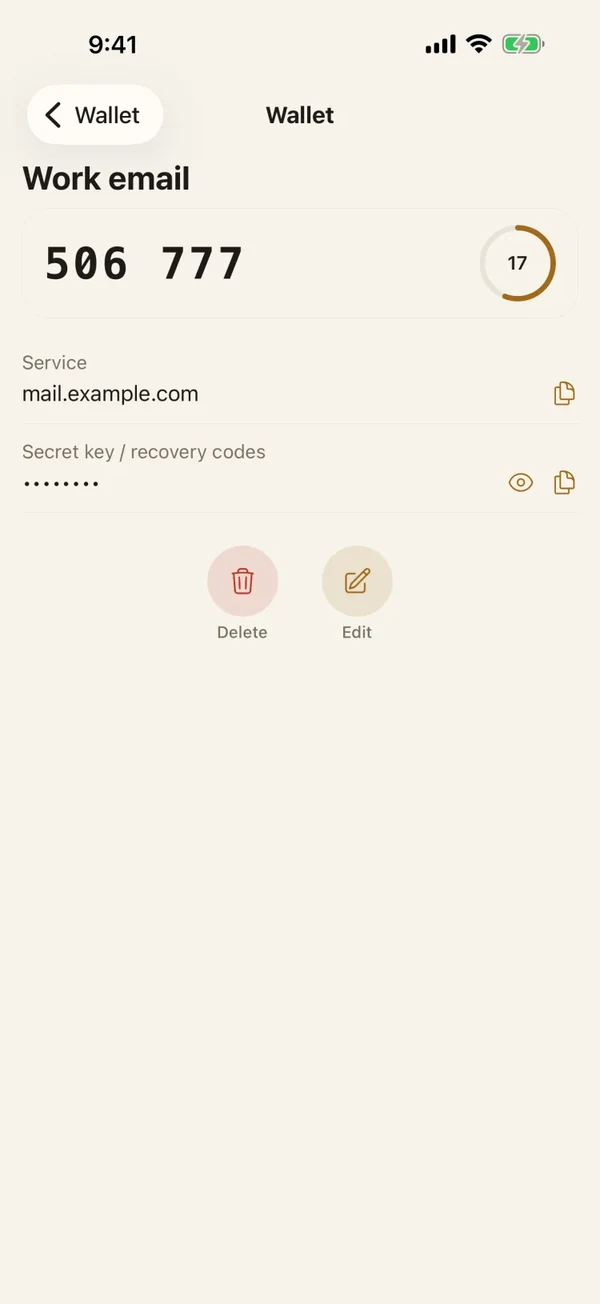
Lockboxy is a private, encrypted vault app for iPhone. Its Wallet keeps Password entries with a service name, a username, a password and a Notes field. Everything is encrypted on your device with AES-256-GCM behind a passcode of its own. There is no account, and no server holds a copy.
- 1Open Lockboxy with its passcode and go to the Wallet tab.
- 2Tap Add entry and choose Password.
- 3Fill in the service name, username and password, and add a note if you want one.
- 4Save. Tap Show when you need to read it, or Copy to paste it. Lockboxy clears a copied value from the clipboard about 30 seconds later.
Lockboxy does not import from or read Apple's Passwords app, and it is not affiliated with Apple. You type in what you want to keep. What Premium adds is on the Premium page, and the app shows the exact price before you buy.
What are the limits?
- If you forget the vault passcode, nobody can open it, including us. See what to do if you forgot a vault app's passcode.
- Copying a password puts it on the clipboard for a short time. See who can see your clipboard.
- A vault does not make a weak or reused password strong. Change those at the site itself.
More answers are in the Lockboxy FAQ.
Frequently asked questions
How do I see saved passwords on my iPhone?
Open the Passwords app (iOS 18 or later) or Settings then Passwords, unlock with Face ID, Touch ID or your passcode, and tap the site or app.
Why is a saved password missing on my iPhone?
Check the All view, search by the site's name, look in Recently Deleted, and confirm you use the same Apple Account with iCloud Keychain on. Logins saved in a browser or third-party manager are in that app instead.
Can someone see my saved passwords if they have my iPhone?
They need Face ID, Touch ID or your passcode to view an entry. Anyone who knows your passcode can unlock it, so keep it private.
Where can I keep passwords the Passwords app does not hold?
A private encrypted vault with its own passcode works, such as the Wallet in Lockboxy. Keep a plan for recovering the vault, because a forgotten vault passcode cannot be reset.
Want a private place with its own passcode?
Lockboxy encrypts photos, videos, files and notes on your device, behind a passcode separate from your phone's. No account, no server.
Get Lockboxy on the App StoreMore guides
- How to store passwords safely on your phone
- How to share a password with family on iPhone without sending it in a chat
- You copied a password on iPhone: who can see your clipboard, and how to stop apps pasting from it
- How to find and share a saved Wi-Fi password on iPhone
- How to hide photos on iPhone (and what “hidden” really protects)
- How to lock apps on iPhone: Face ID lock, hiding apps and older-iOS workarounds
- How to store photos of your ID safely on your phone
- How to permanently delete photos on iPhone (and every copy you forgot)
- How to lock notes on iPhone with a password or Face ID
- How to lend your iPhone without exposing your photos
- How to store a seed phrase safely (and what not to do)
- What to do before sending your iPhone for repair
- How to take photos that don't save to your iPhone camera roll
- How to scan documents on iPhone (no app needed) and store them safely
- How to store 2FA backup codes safely (and where not to)
- How to handle sensitive screenshots on iPhone (bank transfers, OTPs, IDs)
- How to keep voice recordings private on iPhone
- How to stop iPhone photos syncing to your iPad and Mac
- What to do when your iPhone is lost or stolen
- How to erase your iPhone before selling it
- Lockboxy vs the iPhone Hidden album: which should you use?
- Lockboxy vs locked notes on iPhone: which is better for private notes?
- Phone privacy for livestream sellers: keep customer data off the stream
- Keeping client documents private: a phone routine for real-estate agents
- How to hide contacts on iPhone: what really works
- How to tell if someone went through your iPhone
- How to move private photos to a new iPhone
- How to password protect a folder on iPhone
- How to remove location data from photos on iPhone before sharing
- How to store bank card details safely on your phone
- How to stop unwanted photos from showing up in Memories and Featured Photos on iPhone
- How to control which photos an app can access on iPhone
- How to find the Hidden album on iPhone (and why it may be missing)
- How to show someone a photo on your iPhone without them swiping to the others
- How to stop WhatsApp saving photos to your iPhone camera roll
- How to stop photos from Messages showing up in your iPhone Photos app
- How to password protect a video on iPhone
- How to password protect a PDF on iPhone
- What does Private Browsing on iPhone actually hide?
- Where do downloads go on iPhone? How to find, move and delete them
- How to hide private content in the iPhone App Switcher
- How to back up your iPhone photos without iCloud
- How to stop photos from showing up in iPhone Spotlight search
- What can someone do with your locked iPhone? How to limit Lock Screen access
- Why is there a green or orange dot on my iPhone? How to see which app is using your camera or microphone
- How to keep a private journal on iPhone
- How to stop unwanted AirDrops on iPhone
- How to keep medical documents and insurance cards private on iPhone
- How to change or remove the camera button on the iPhone Lock Screen
- Forgot the passcode of your private photo vault app? What you can and can't recover
- What happens to your iPhone photos and private data when you die? How to set up a Legacy Contact
- What is Stolen Device Protection on iPhone, and should you turn it on?
- Where to store PIN codes and door codes on iPhone
- Where to store your Apple Account recovery key (and what if you lose it)
Questions about how Lockboxy works? Read the FAQ