
You copied a password on iPhone: who can see your clipboard, and how to stop apps pasting from it
Published November 1, 2026
Copy a password on your iPhone and it goes onto the clipboard, a shared holding spot that stays there until something else replaces it. iOS shows you when another app reads it, and it can also reach your other Apple devices.
This guide explains the "pasted from" banner and the "Allow Paste" prompt, how to control which apps may paste, how to stop copies travelling to your Mac, and safer habits for passwords and codes. Menu names change between iOS versions, so check your own screen if a label differs.
What is the clipboard, and how long does a copy stay?
Anything you copy, whether text, a photo or a link, is held in one place that every app can ask for. Apple does not give you a setting to clear it after a few minutes. The copy normally stays until you copy something else.
That is convenient for pasting a code into a form, and it is the reason a copied password is worth treating carefully. An app you open next, or a person using your unlocked phone, could paste it.
Why does my iPhone say "pasted from" or ask me to "Allow Paste"?
Since iOS 14, iPhone shows a short banner when an app reads what you copied from another app or device. It is a privacy signal, not an error.
Since iOS 16, pasting from another app usually brings up an "Allow Paste" prompt. Tap Allow Paste to continue. If an app asks without you having tapped paste, treat that as a red flag and tap Don't Allow.
Pasting into an app by long pressing a field and choosing Paste is the normal route and is what the prompt is for.
How do I choose which apps can paste from other apps?
On iOS 16.1 and later, each app that has asked for the clipboard gets its own setting:
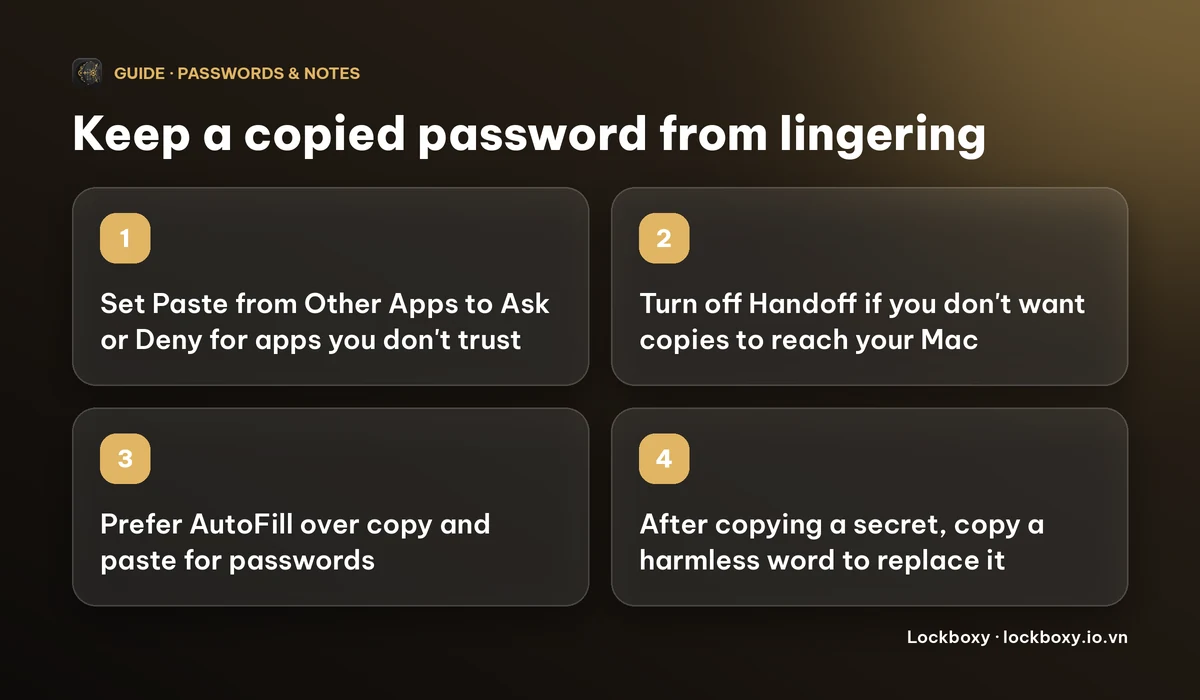
- 1Open Settings and scroll to the app, or find it under Apps on newer versions.
- 2Tap Paste from Other Apps. The row only appears after the app has requested the clipboard at least once.
- 3Choose Ask (prompt each time), Deny (never) or Allow (no prompt).
Ask is a good default. Deny blocks pasting into that app from other apps, so use it for apps that do not need it. Reports differ on whether Allow removes every prompt, so do not rely on it to silence them.
Can my Mac or iPad see what I copied on my iPhone?
Yes, if Handoff is on. Universal Clipboard, part of Apple's Continuity features, lets you copy on one Apple device and paste on another that is signed in to the same Apple Account and nearby. Useful, but it also means a password copied on the iPhone can be pasted on a Mac that someone else is using.
To switch it off on the iPhone, go to Settings → General → AirPlay & Handoff and turn Handoff off (some versions label the page Continuity). On a Mac, Handoff is under System Settings → General → AirDrop & Handoff. Turning Handoff off also stops other Handoff features, not only the shared clipboard.
Safer ways to move a password or code
- Use AutoFill. Passwords from the Passwords app or a password manager can fill a login form without sitting on the clipboard. Prefer this to copy and paste when it works.
- Do not paste secrets into chats, email drafts or notes to "carry" them across. Those copies stay where you left them. See How to store passwords safely on your phone.
- Be careful with third-party keyboards. A keyboard that asks for Full Access can read what you type, so use the standard keyboard for passwords.
- After copying something sensitive, copy a harmless word to replace it. It is a free, instant way to "clear" the clipboard.
- Do not screenshot a code or password either, because it ends up in Photos. See How to handle sensitive screenshots on iPhone.
How Lockboxy handles copied passwords
Lockboxy is an iPhone app that keeps photos, files, notes and a Wallet of passwords, cards and 2FA codes in an encrypted vault behind its own passcode.
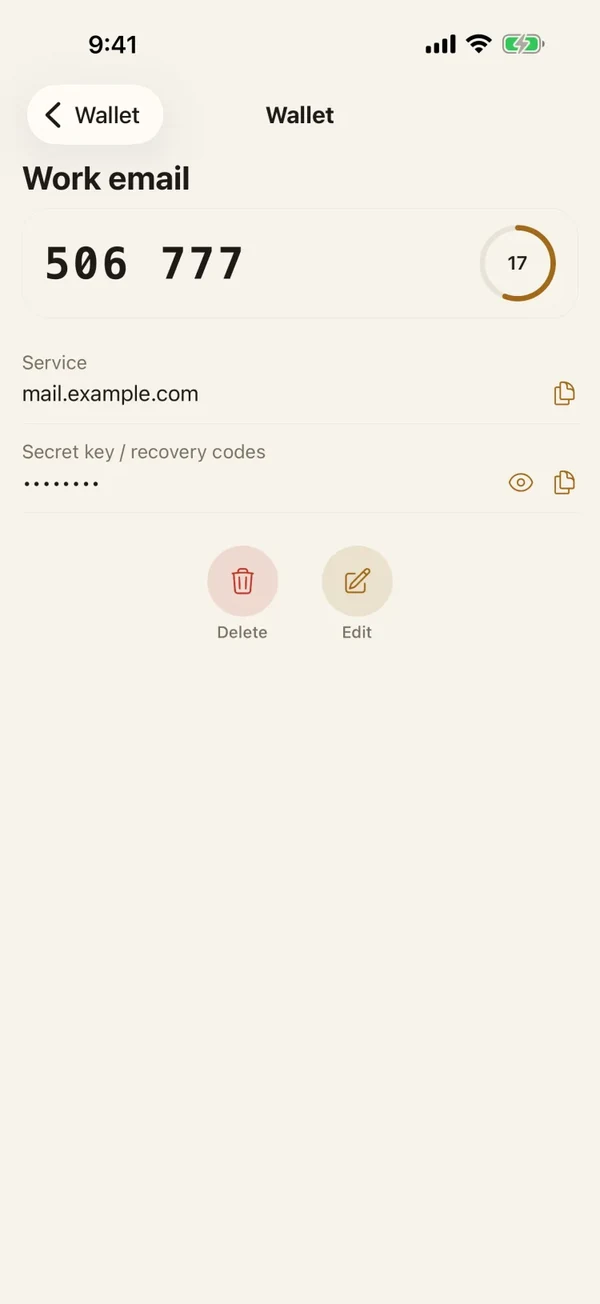
In the Wallet, each Copy button puts the value on the clipboard and then clears it after 30 seconds. If you copy a second field in the meantime, the clearing follows the latest copy, so the earlier timer does nothing. It is a guard against forgetting, not a guarantee: anything that pastes during those 30 seconds still gets the value, and it does not stop Universal Clipboard from sharing a copy while it is there.
The Copy button is optional. You can also tap Show to read a value and type it. See How to store 2FA backup codes safely for codes you only need once.
Frequently asked questions
Why does my iPhone say an app pasted from another app?
Since iOS 14, iPhone shows a banner when an app reads what you copied from another app or device. It tells you the clipboard was accessed, nothing more.
How do I stop the Allow Paste pop-up on iPhone?
On iOS 16.1 and later, open the app's page in Settings, tap Paste from Other Apps and choose Ask, Deny or Allow. The row appears only after the app has asked for the clipboard once. Reports differ on whether Allow removes every prompt.
How do I clear the clipboard on iPhone?
There is no clear button. Copy a harmless word, which replaces whatever was there.
How do I turn off Universal Clipboard?
Turn off Handoff in Settings → General → AirPlay & Handoff (the page name varies by iOS version). This also turns off other Handoff features.
Does Lockboxy clear what I copy?
Yes for Wallet Copy buttons: the value is cleared from the clipboard after 30 seconds, unless you copied something newer, in which case that newer copy is the one cleared.
Want a private place with its own passcode?
Lockboxy encrypts photos, videos, files and notes on your device, behind a passcode separate from your phone's. No account, no server.
Get Lockboxy on the App StoreMore guides
- How to store passwords safely on your phone
- How to store 2FA backup codes safely (and where not to)
- How to handle sensitive screenshots on iPhone (bank transfers, OTPs, IDs)
- How to hide photos on iPhone (and what “hidden” really protects)
- How to lock apps on iPhone: Face ID lock, hiding apps and older-iOS workarounds
- How to store photos of your ID safely on your phone
- How to permanently delete photos on iPhone (and every copy you forgot)
- How to lock notes on iPhone with a password or Face ID
- How to lend your iPhone without exposing your photos
- How to store a seed phrase safely (and what not to do)
- What to do before sending your iPhone for repair
- How to take photos that don't save to your iPhone camera roll
- How to scan documents on iPhone (no app needed) and store them safely
- How to keep voice recordings private on iPhone
- How to stop iPhone photos syncing to your iPad and Mac
- What to do when your iPhone is lost or stolen
- How to erase your iPhone before selling it
- Lockboxy vs the iPhone Hidden album: which should you use?
- Lockboxy vs locked notes on iPhone: which is better for private notes?
- Phone privacy for livestream sellers: keep customer data off the stream
- Keeping client documents private: a phone routine for real-estate agents
- How to hide contacts on iPhone: what really works
- How to tell if someone went through your iPhone
- How to move private photos to a new iPhone
- How to password protect a folder on iPhone
- How to remove location data from photos on iPhone before sharing
- How to store bank card details safely on your phone
- How to find and share a saved Wi-Fi password on iPhone
- How to stop unwanted photos from showing up in Memories and Featured Photos on iPhone
- How to control which photos an app can access on iPhone
- How to find the Hidden album on iPhone (and why it may be missing)
- How to show someone a photo on your iPhone without them swiping to the others
- How to stop WhatsApp saving photos to your iPhone camera roll
- How to stop photos from Messages showing up in your iPhone Photos app
- How to password protect a video on iPhone
- How to password protect a PDF on iPhone
- What does Private Browsing on iPhone actually hide?
- Where do downloads go on iPhone? How to find, move and delete them
- How to hide private content in the iPhone App Switcher
- How to back up your iPhone photos without iCloud
- How to stop photos from showing up in iPhone Spotlight search
- What can someone do with your locked iPhone? How to limit Lock Screen access
- Why is there a green or orange dot on my iPhone? How to see which app is using your camera or microphone
- How to keep a private journal on iPhone
- How to stop unwanted AirDrops on iPhone
- How to keep medical documents and insurance cards private on iPhone
- How to change or remove the camera button on the iPhone Lock Screen
- Forgot the passcode of your private photo vault app? What you can and can't recover
- What happens to your iPhone photos and private data when you die? How to set up a Legacy Contact
- What is Stolen Device Protection on iPhone, and should you turn it on?
- Where to store PIN codes and door codes on iPhone
- How to share a password with family on iPhone without sending it in a chat
- Where to store your Apple Account recovery key (and what if you lose it)
- How to see saved passwords on iPhone (and what to do when one is missing)
Questions about how Lockboxy works? Read the FAQ